Invite Other Users
Overview
There is no charge for additional users.
Invite others to join your workspace to collaborate over your data.
Navigate to workspace settings:


Then go to the Users tab:
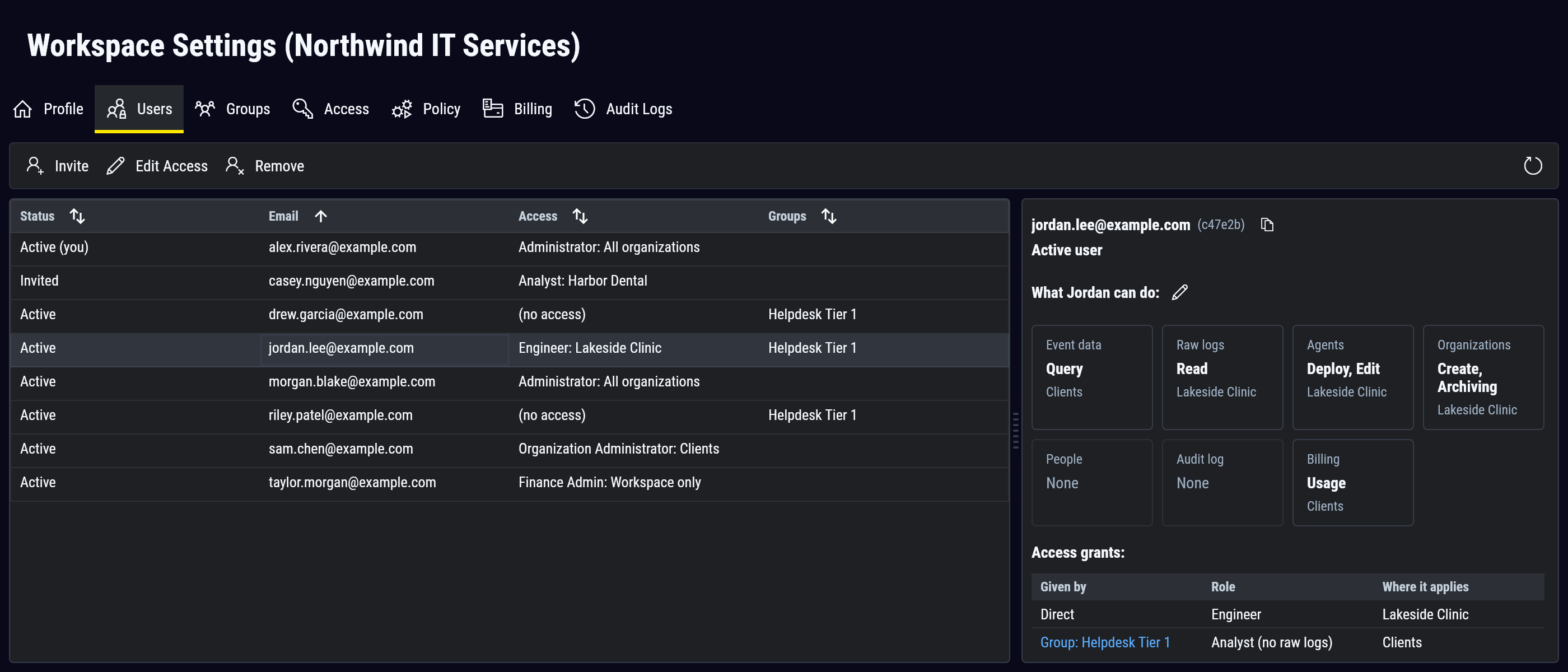
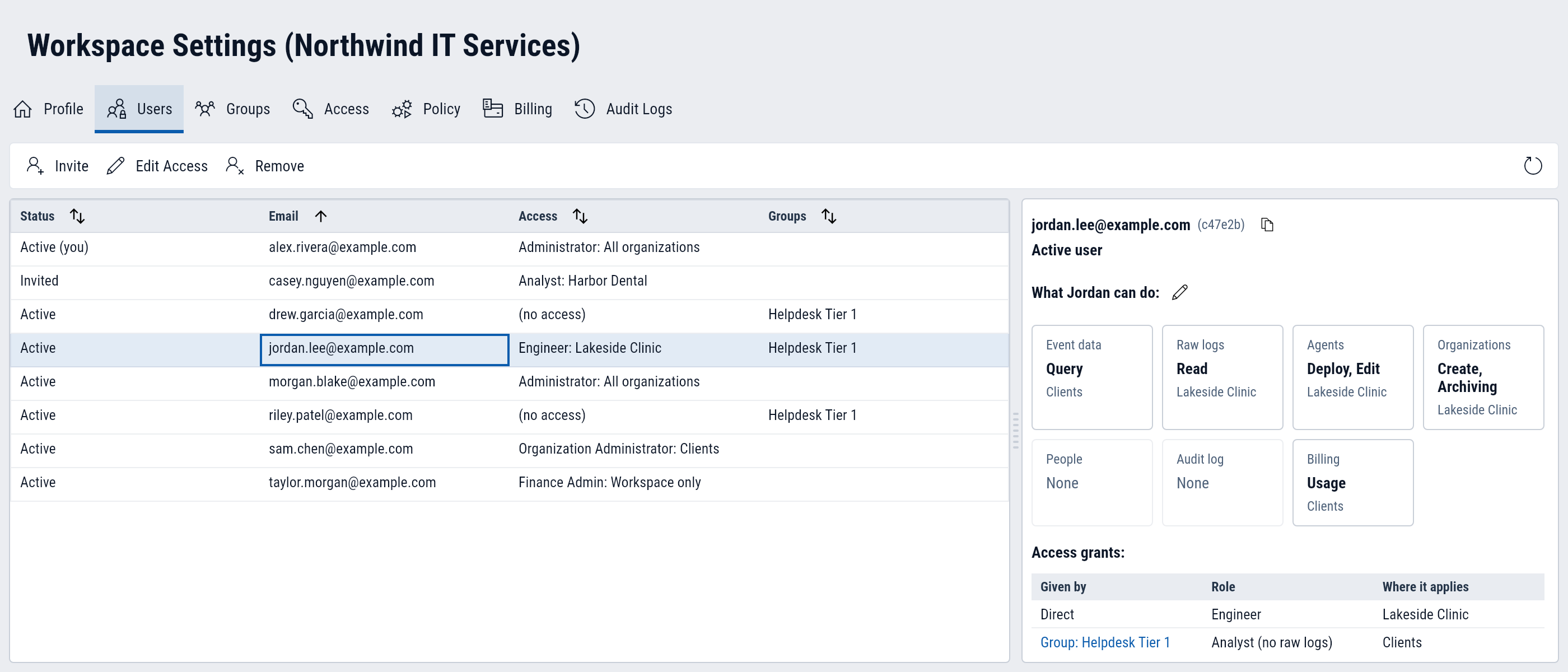
Each user is identified by their email address. When you invite someone, choose the access they get when they accept: a role, and where it applies. You can also invite with no access and give it later, if your role applies to All organizations.
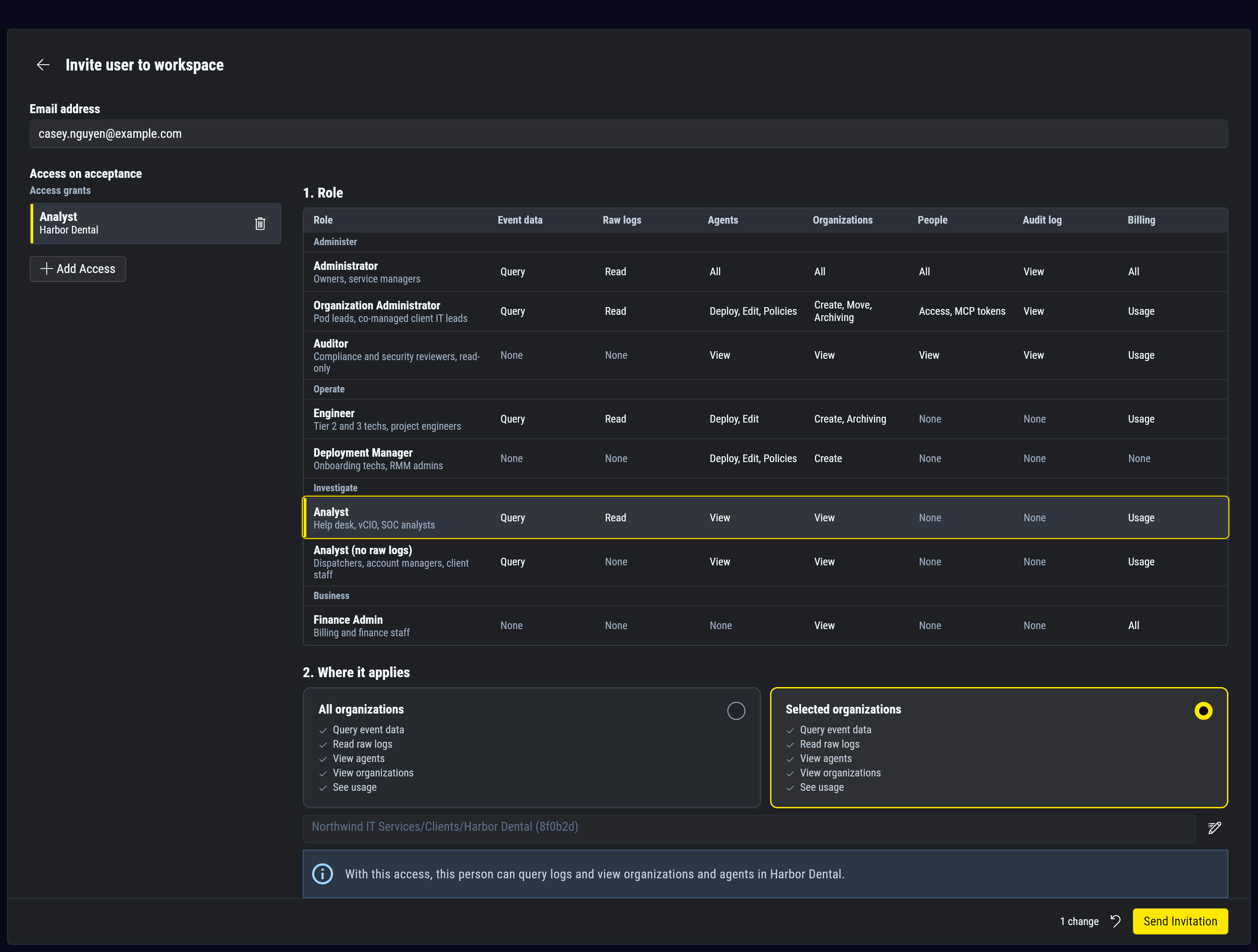
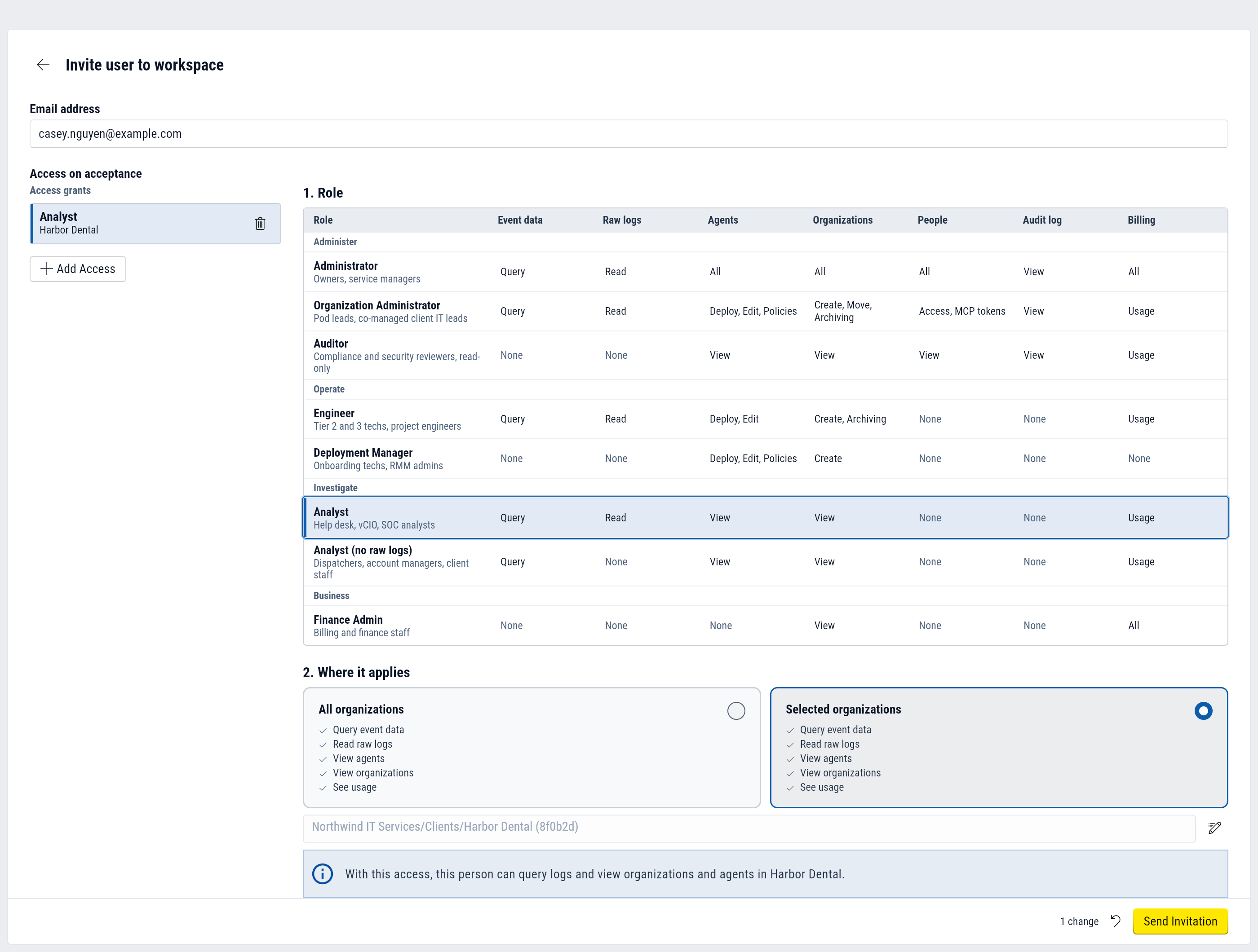
When you add a user to your workspace, they'll receive an email invite. After signing in, they find the invitation in the workspace menu and accept or reject it:
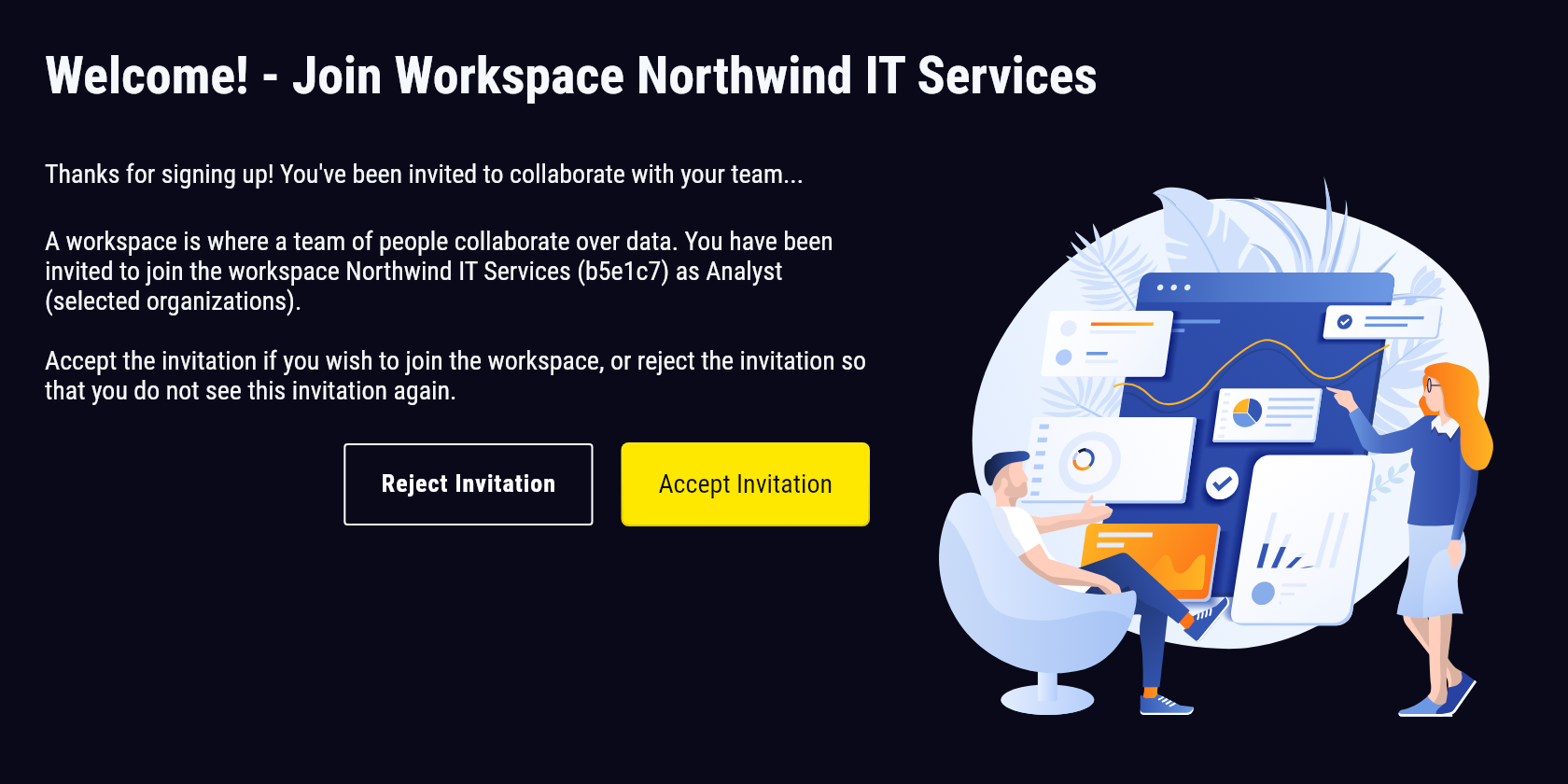
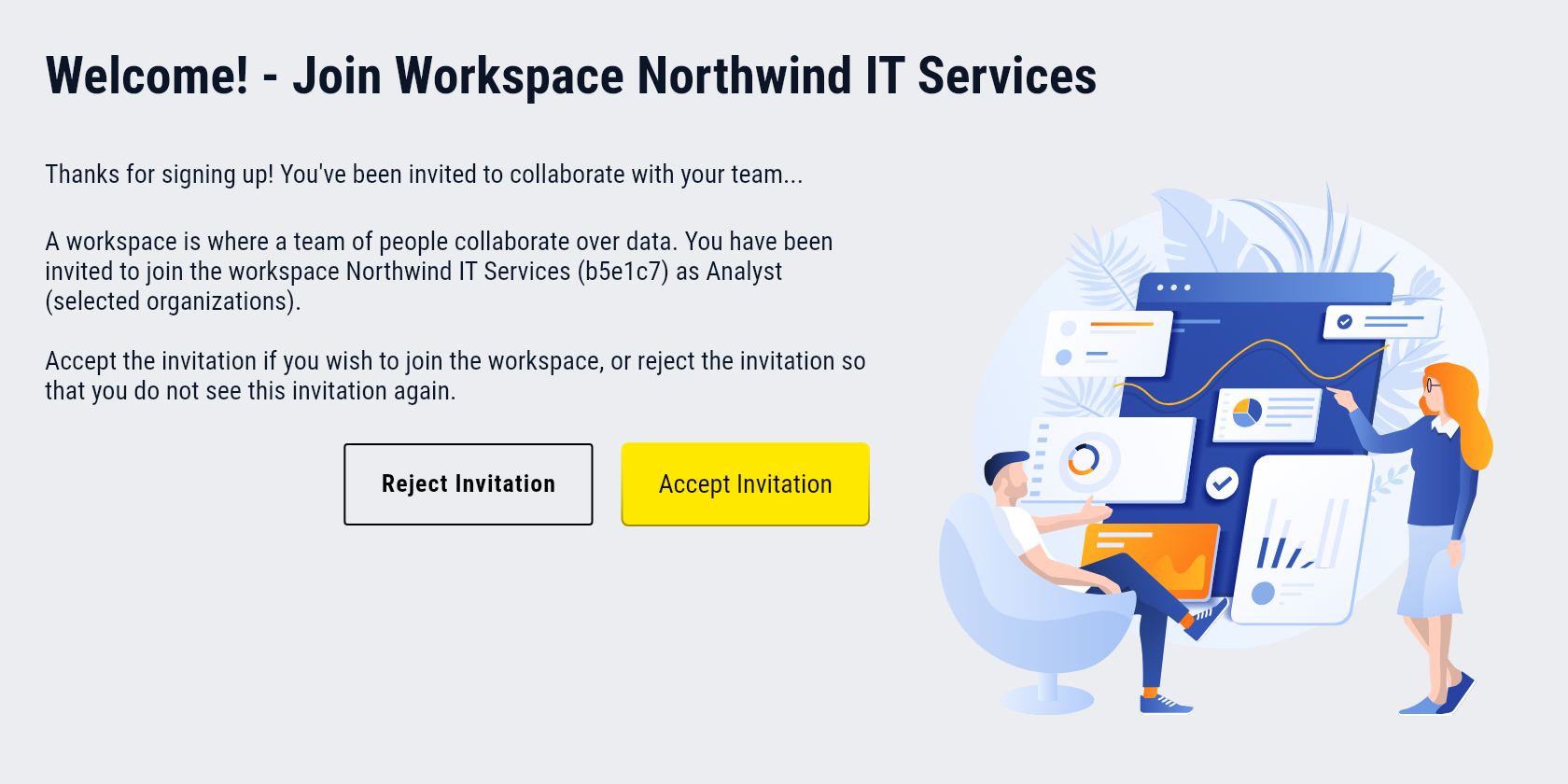
You can send the invitation again with Send Reminder. An invitation expires 90 days after it was last sent, and Send Reminder restarts the 90 days.
Roles
A role determines which actions a user can take in your workspace. (More specifically, it determines the set of privileges the user has.)
Available roles are:
- Administrator: everything, including managing users, workspace settings and billing
- Organization Administrator: on the organizations it covers, manages users, organizations, agents and archiving, queries all data and reads the Audit Logs tab, with no workspace settings or billing
- Engineer: manages organizations, agents, ingest keys and archiving, and queries all data, but cannot move organizations
- Analyst: views and queries all data but changes nothing
- Analyst (no raw logs): like Analyst, without raw log events and App Analytics
- Deployment Manager: manages organizations (except moving them), agents, agent policy, ingest keys and registration tokens, with no access to collected data
- Auditor: views access, configuration and the Audit Logs tab, with no access to collected data
- Finance Admin: manages billing and views ingestion volume by organization, with no access to collected data
See Users, roles and groups for the full table, groups and the Audit Logs tab.
Organizational scope
A user can query data only in the organizations their access applies to.
When data is ingested, it is associated with the organization that is associated with the log collector (or in the advanced use case a child organization of its associated organization). This allows you to compartmentalize data hierarchically and then provide access only to the data appropriate for that role.
For example, you could choose to setup a separate organization for your dev environment, staging environment, and production environment, and only give your software engineers access to data in the dev environment organization, while giving your software reliability engineers access to data in all environments.
When you add access to a user or an invitation, pick a role, then where it applies: All organizations, Selected organizations (and all of their children), or Workspace only when the role has workspace permissions:
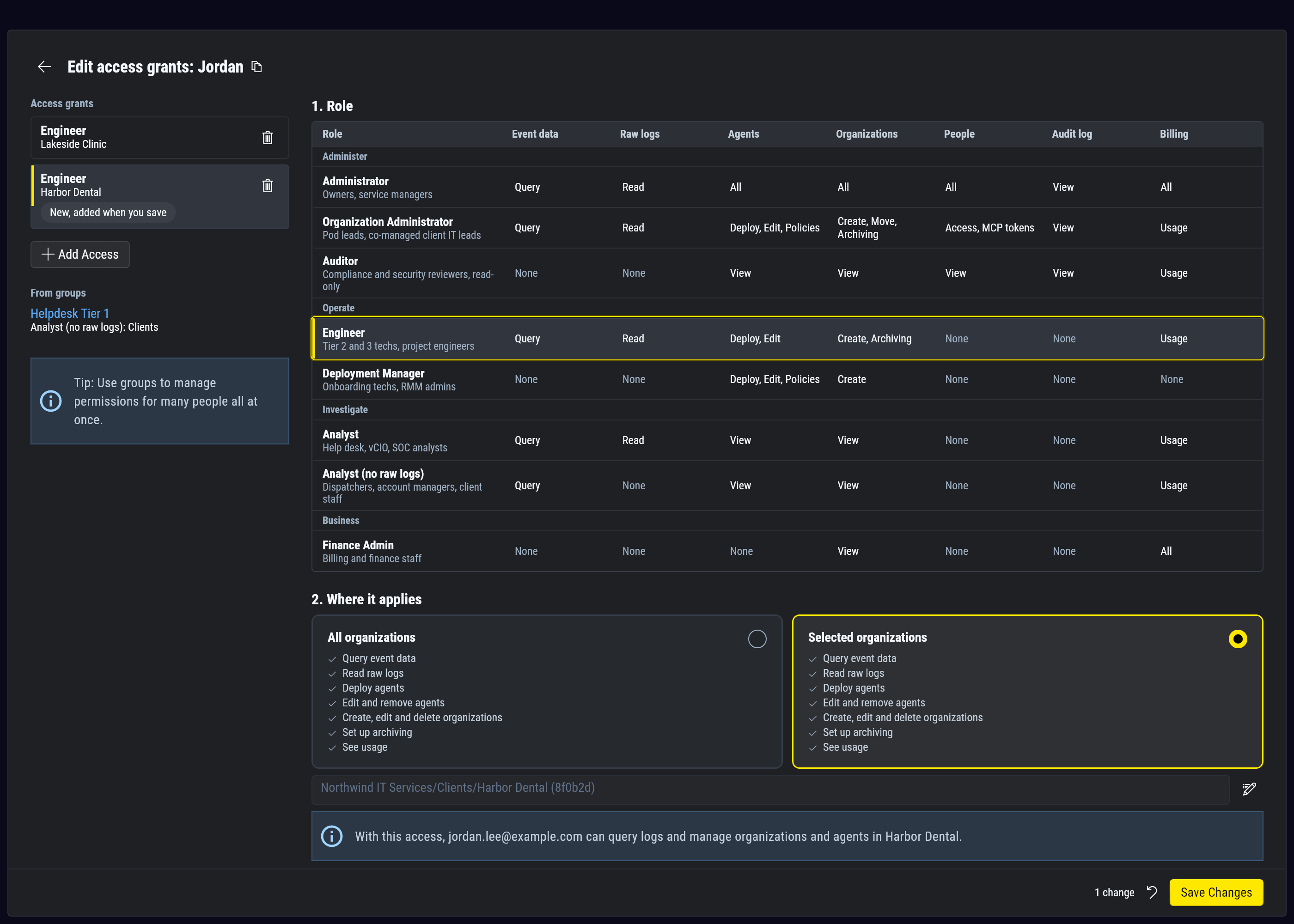
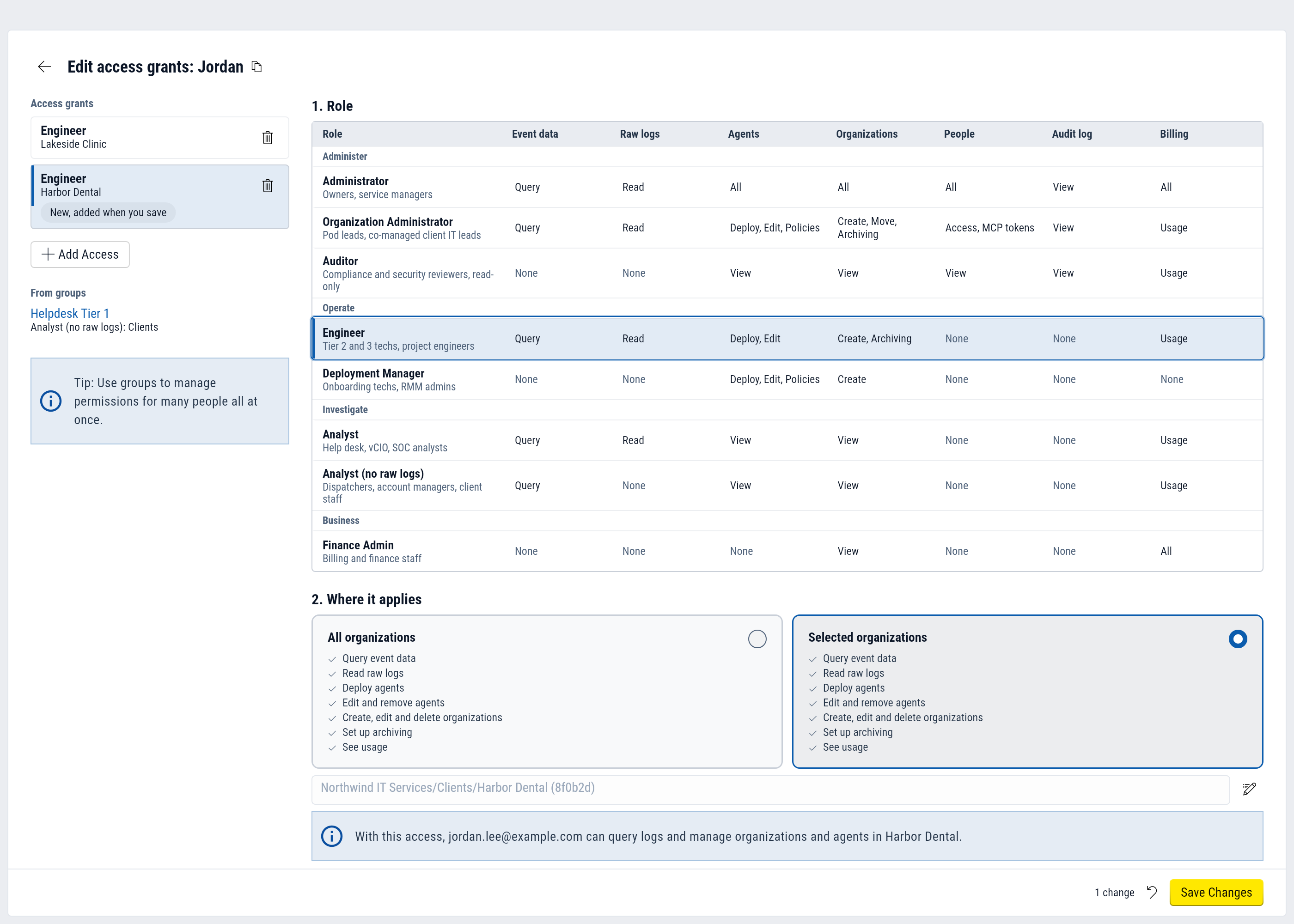
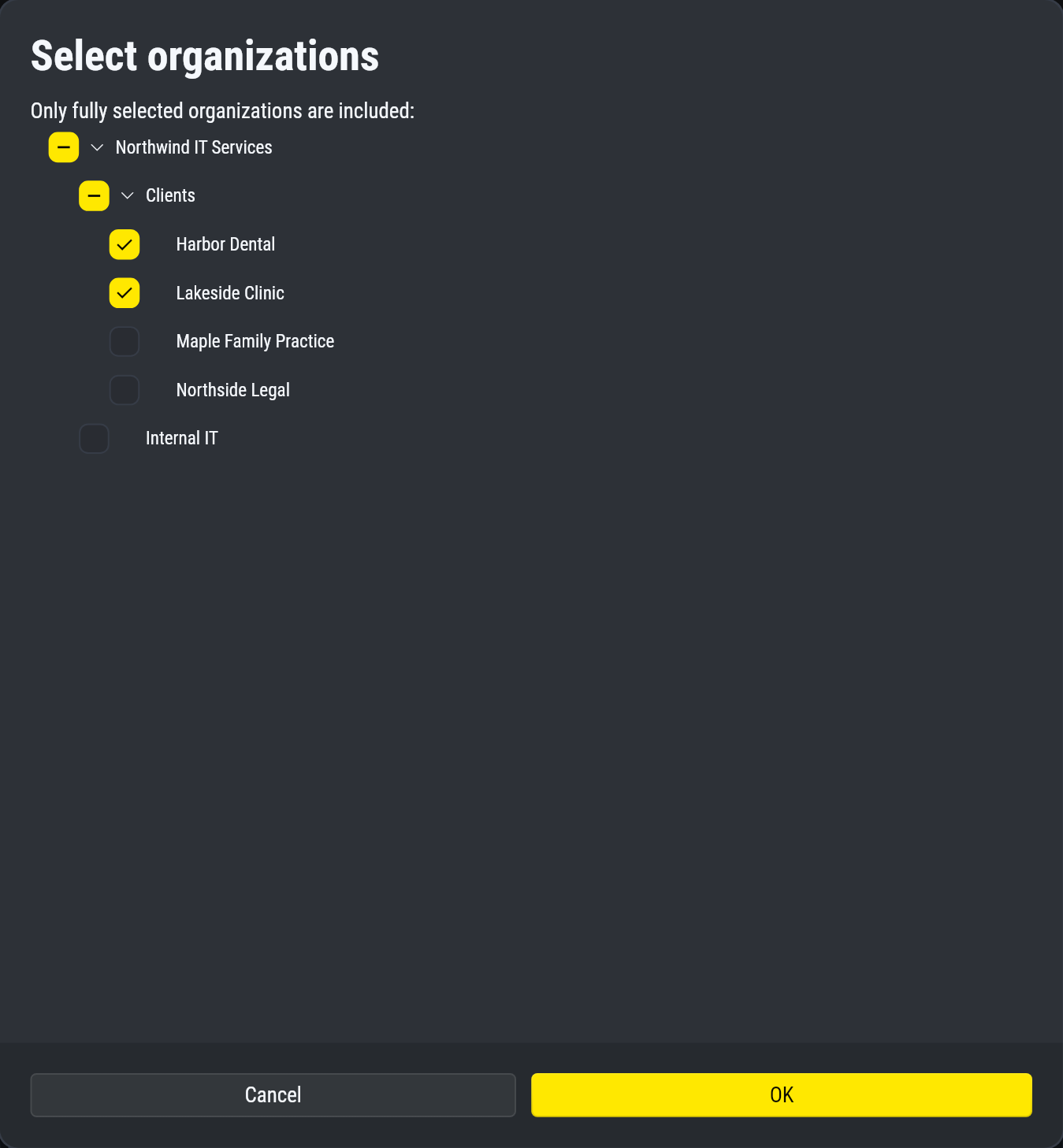
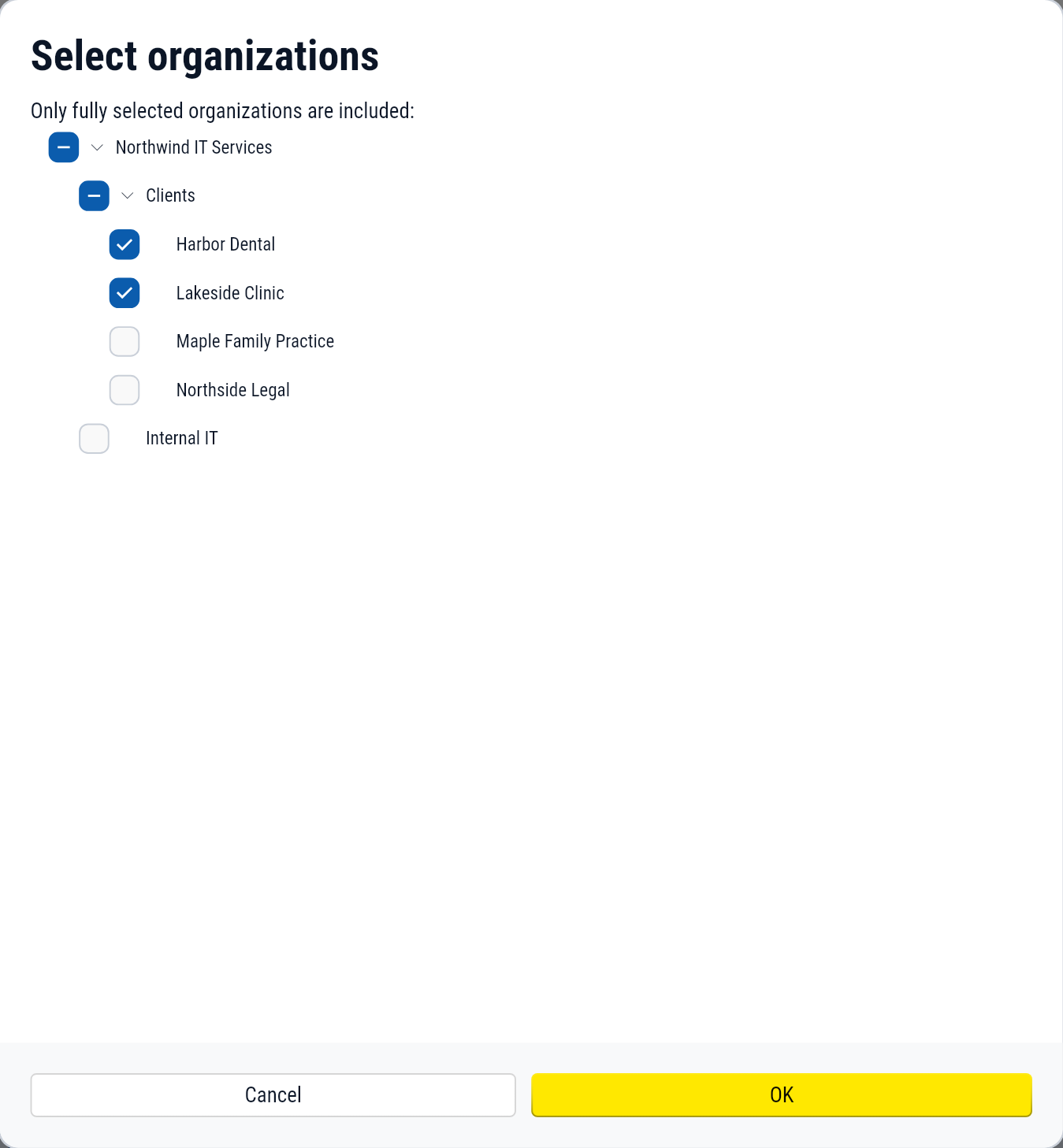
If you choose Selected organizations, click the edit icon to pick them.
Selecting an organization includes everything under it:
A user can hold several access grants, for example Engineer on one client and Analyst on another. To give a team the same access, create a group on the Groups tab.