Your AI and the App
Your AI searches across the fleet. The app shows one device as it was at a chosen moment, called T. AI answers link into the app, and the app copies what you see back as a prompt.
If your AI is not connected yet, see Connect your AI.
From the AI to the app
An AI answer carries two kinds of link:
- A device link opens that device's timeline on the window the AI used. When the answer names a moment, the link sets T to it. Otherwise T is the device's latest data in that window. It can also open a tab, a condition, or a row such as one service or one process.
- An Explore link opens the query in Explore. For a refined answer it reopens the original query, which can be broader than the rows the AI kept.
Change T, the tab or the selection, then use More actions > Copy Link to share what you see.
From the app to the AI
Each tab strip has two icon buttons. Hover over one to see what it does.
- The copy button copies the tab's evidence for a ticket, in the format that fits the tab, such as a table with UTC times and a summary line.
- The investigation prompt button copies a prompt for your AI: the device and its IDs, the window and T, what you selected, a system summary, and a link back to the page.
The device header has the same investigation prompt action.
If you have not supplied a question, the prompt asks the AI to agree one with you before querying. Device-reported text is marked as untrusted data, with instructions to treat it as evidence rather than commands. The prompt lists the device's conditions as context, without a diagnosis.

Example: slow internet at a dental office
Harbor Dental, one of your clients, says the internet is slow every night and first thing in the morning.
You:  Harbor Dental says the internet is slow at night. What do you see?
AI:   The network path looks normal at those hours.
      hd-pc-02 uploads steadily from 22:00 to 08:30, and other traffic shares the link.
      The device data does not show how much of the link the upload uses.
      [hd-pc-02 at 23:10]  [upload traffic, last 7 nights]
Open the device link.
It lands at 23:10 on the Network tab.
The Processes tab names the sender: filesync.exe.
The timeline shows the same upload every night of the week.
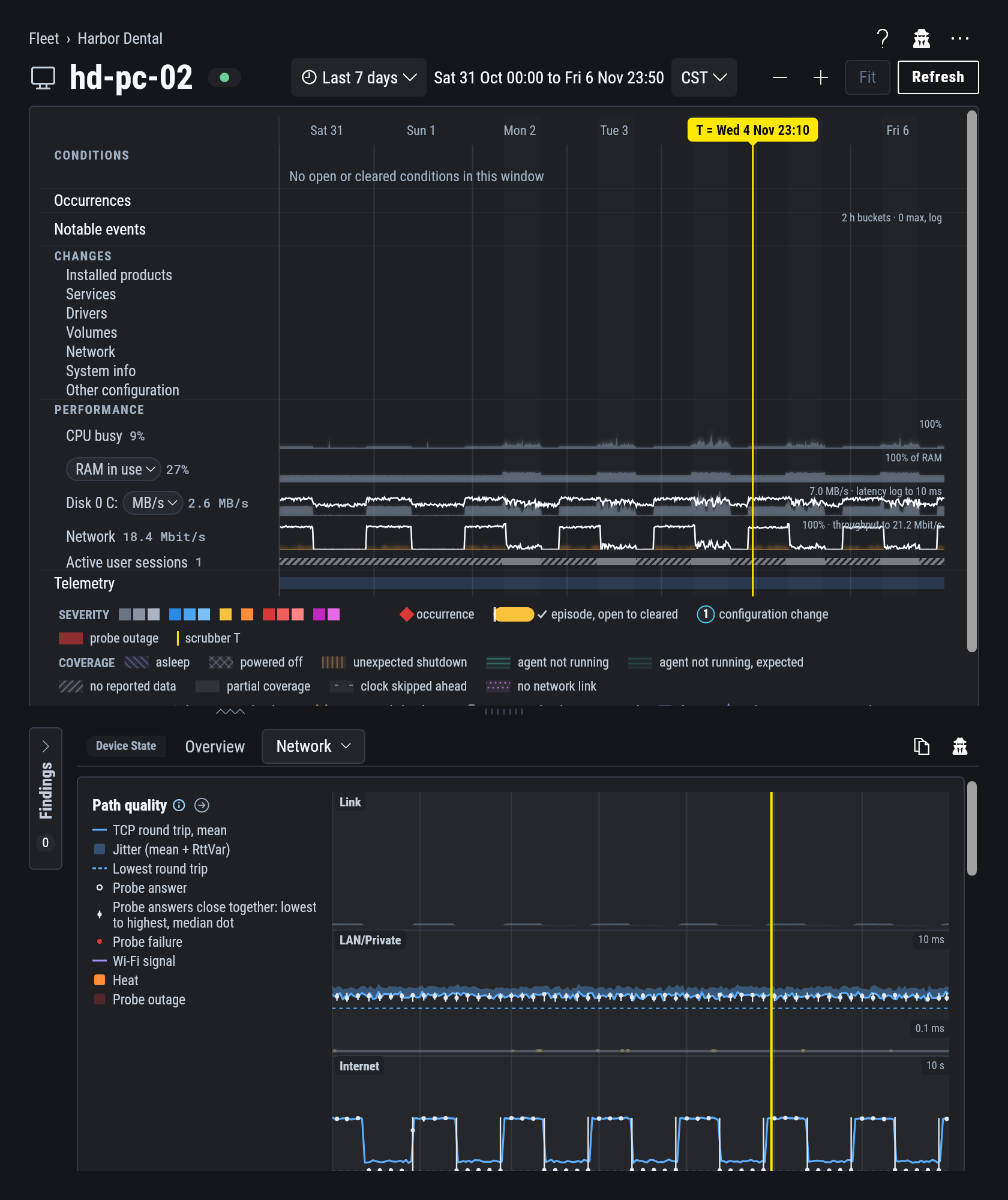
Select that process, copy the investigation prompt from the Processes tab, and paste it with your question:
You:  [pasted prompt] When did this start?
AI:   filesync.exe first uploaded overnight on the 3rd and has every night since.
      [hd-pc-02, first night]  [filesync.exe upload by night]
Ask the AI for a ticket note with the device links, so the next engineer opens the same view.
What each source can tell you
- Your RMM is the authority on whether a machine is up. SparkLogs reports what the device recorded and when it last reported.
- Findings in the app are what the device reported. Cause analysis is a separate, labeled step in your AI: see Agentic RCA.
- Before you trust a gap, check collection health.