Microsoft Copilot Studio
Copilot Studio does not load the SparkLogs skills plugin. You connect the SparkLogs MCP server and paste the instruction template.
Create this agent on the standard harness (classic Copilot Studio authoring). If Studio offers a New experience toggle, leave it off. The GitHub Copilot harness (that New experience) is a different runtime. You pick it at create and cannot convert later.
The standard harness is the right fit here: generative orchestration plus SparkLogs MCP is enough. You do not need the GitHub harness's extra reasoning runtime.
Billing is the other reason. On the standard harness, a Microsoft 365 Copilot-licensed tech can chat with this agent in Teams and Copilot Chat under Microsoft's included / fair-use terms, not billed per token. The GitHub Copilot harness bills Copilot Credits for building, testing, and every run.
Microsoft's comparison: Standard harness vs GitHub Copilot harness.
Studio controls for MCP: Connect an existing MCP server.
Before you start
- A SparkLogs workspace with data (typically the SparkLogs Agent on the endpoints you manage).
- A Microsoft 365 Copilot per-user license (sometimes sold as Copilot Business) for each person who will talk to the agent. The Copilot Chat that ships with some Microsoft 365 plans is not that license.
- A Power Platform environment you created for this agent. Do not use the tenant Default environment. Default has failed with Overview errors, and Copilot Studio needs a supported region. Switch Copilot Studio's Environment picker to that environment before you create anything.
As of August 2026, Microsoft documents that employee-facing Copilot Studio agents used in Copilot Chat, Teams, and SharePoint are included for a Microsoft 365 Copilot-licensed user, subject to fair use. Microsoft sets those terms; they can change. See Microsoft's Copilot Studio billing rates (footnote on licensed-user inclusion), standard harness licensing, and Copilot extensibility cost considerations.
Create the agent
In Copilot Studio, confirm the Environment picker shows your dedicated environment, not Default. Create a new agent on the standard harness. If Studio offers a New experience toggle, leave it off.
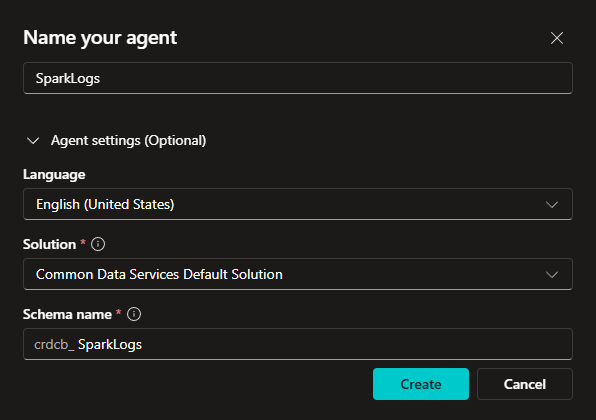
Name the agent SparkLogs AI (or SparkLogs). Language: English, unless your techs work in another language Studio supports. Solution: Common Data Services Default Solution is fine inside a dedicated environment. Ignore the auto-generated schema name; you do not need to copy it.
Model
Set the agent's model to Claude Sonnet 4.6 at General / standard rate.

Skip Auto (Preview), Opus, and GPT-5 Reasoning.
Those burn premium tokens and are not needed for good results.
GPT-5 Chat sometimes may interrogate users for RFC3339 timestamps; Sonnet 4.6 fills SparkLogs start and end itself.
Instructions at create
The create wizard's Instructions box is a short persona. A first paragraph like this is enough to get the agent created:

After the agent exists, replace Overview Instructions with the full instruction template. Keep the glossary, the funnel (coverage, then counts and health, before raw logs), the scope ladder, and the LQL tutorial. Customize the rest if you want.
Turn generative orchestration on. Skip knowledge sources. If you add web search, add it after SparkLogs so fleet questions hit SparkLogs first.
Connect SparkLogs MCP
Open Tools → Add a tool → Model Context Protocol.
Fill in:
- Server name:
SparkLogs MCP - Server description:
Query and analyze SparkLogs data for IT Fleet Intelligence - Server URL: https://mcp.sparklogs.app/mcp
- Authentication: OAuth 2.0
- Type: Dynamic discovery
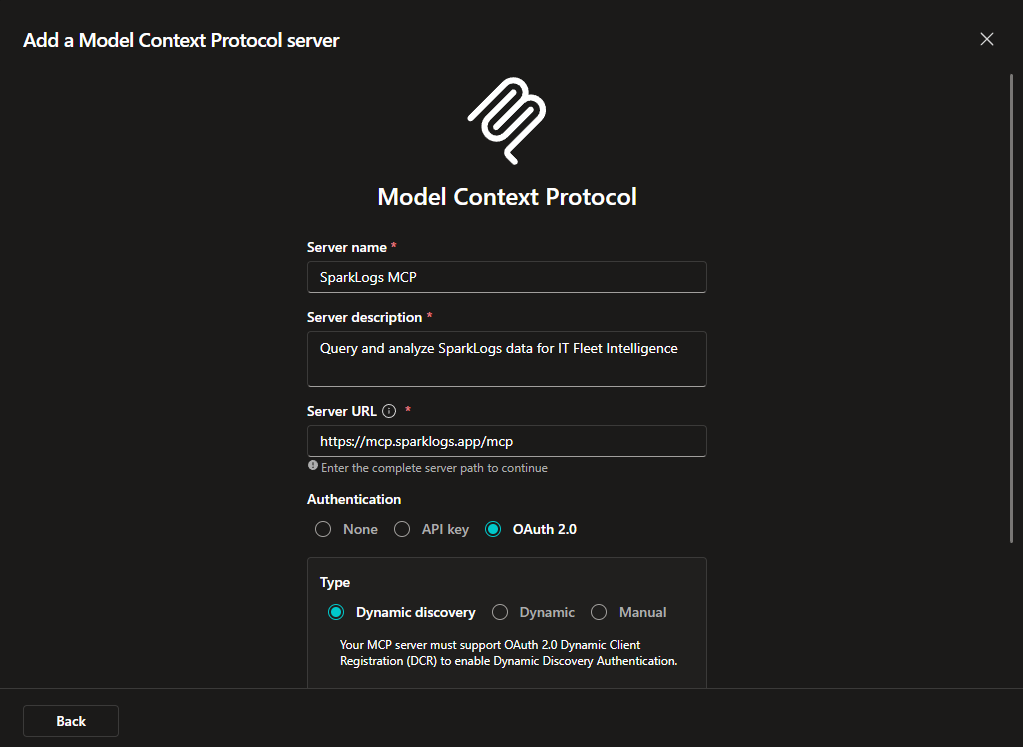
Add and configure stays disabled until the connection exists. That is expected.
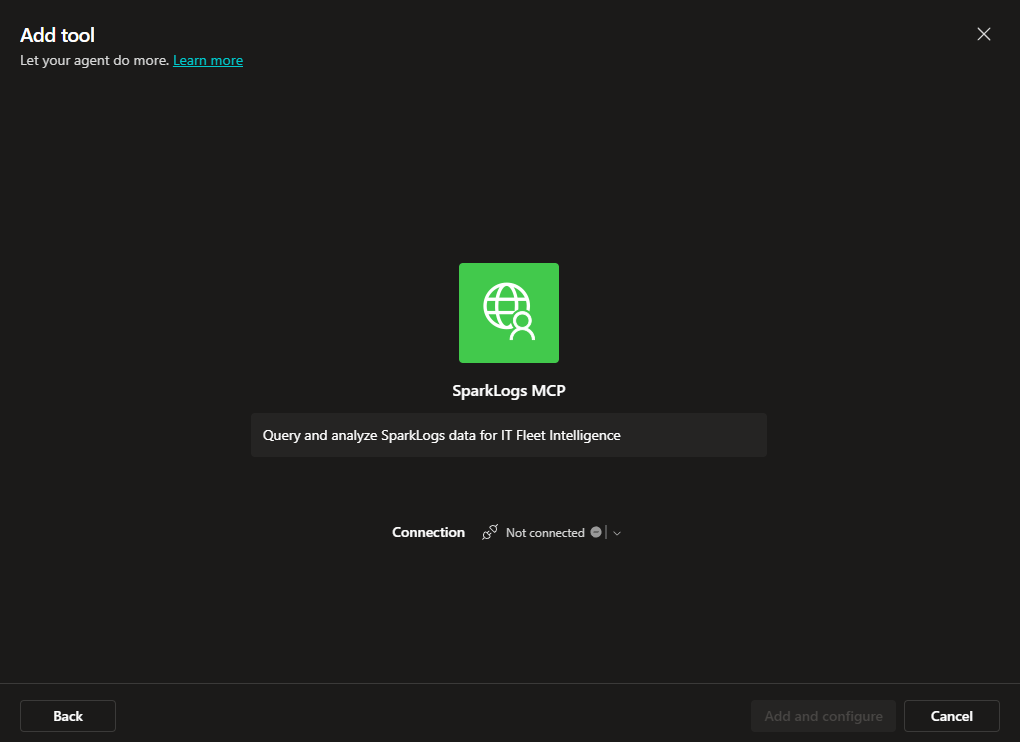
Create the connection.
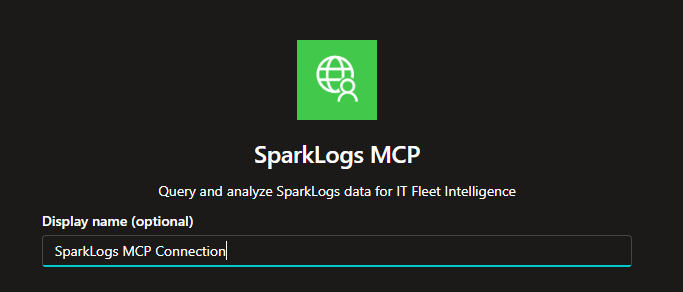
Display name can be SparkLogs MCP Connection (or SparkLogs).
Sign in to SparkLogs
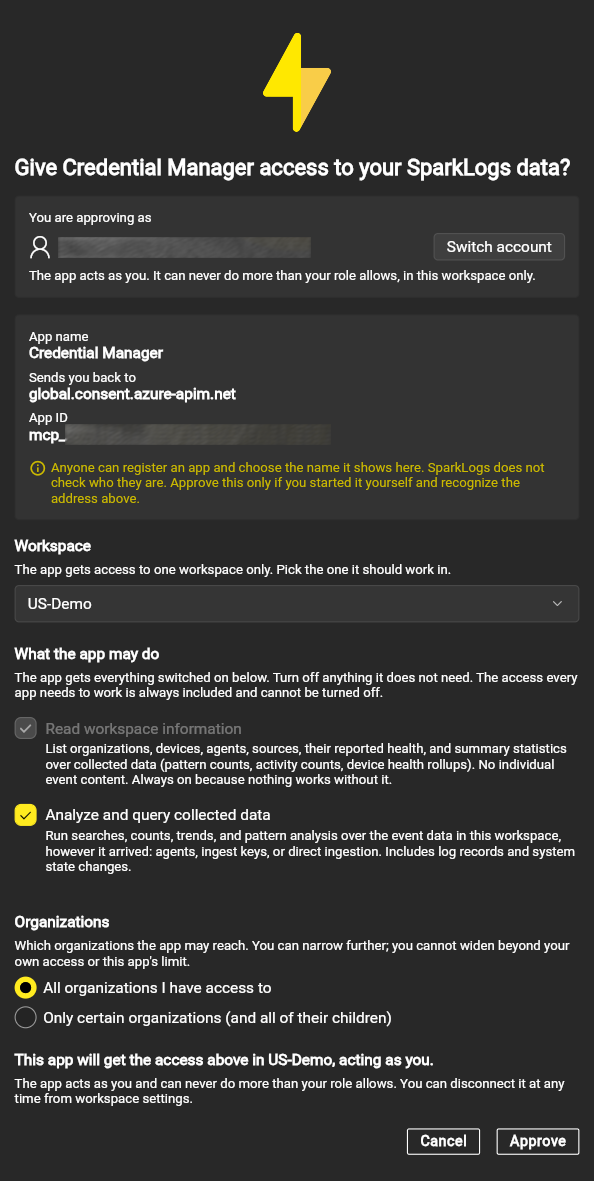
Studio sends you to SparkLogs consent.
The app name Credential Manager and the redirect global.consent.azure-apim.net are Azure's labels for this connector, not a second product.
- Pick the workspace that has your fleet data.
- Leave Analyze and query collected data on (searches, counts, patterns).
- All organizations I have access to is the usual MSP choice. Only certain organizations if this agent should see a subset of clients.
Back in Studio, Create or pick a connection, then Submit.
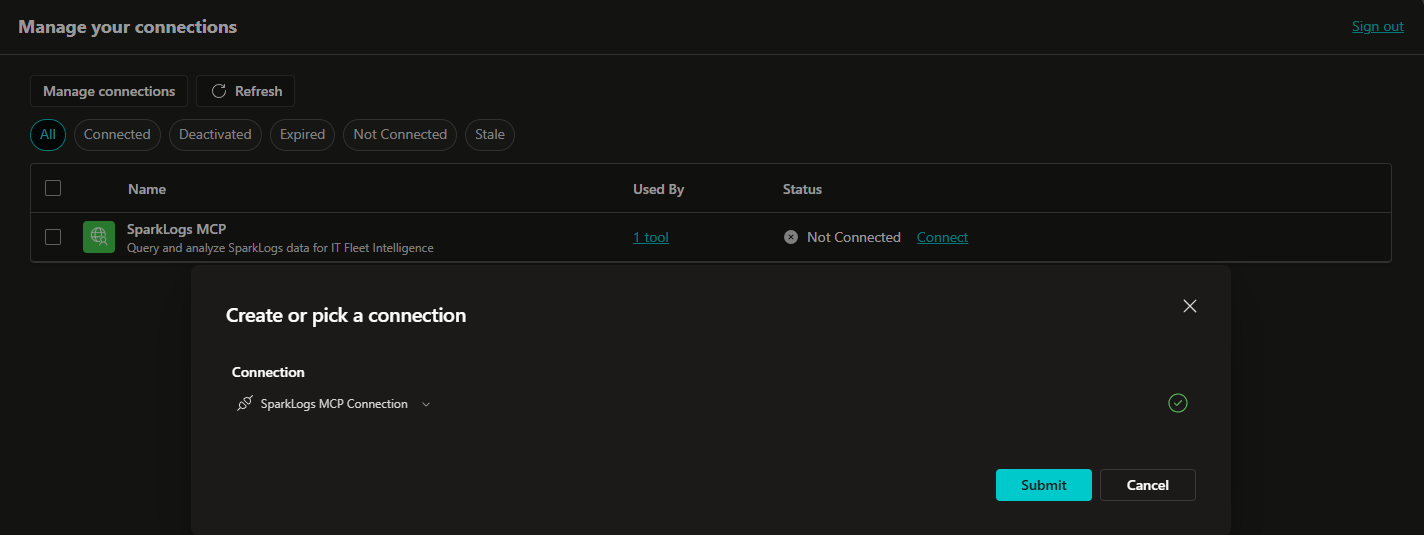
The tools list should show Connected.

Who the agent runs as
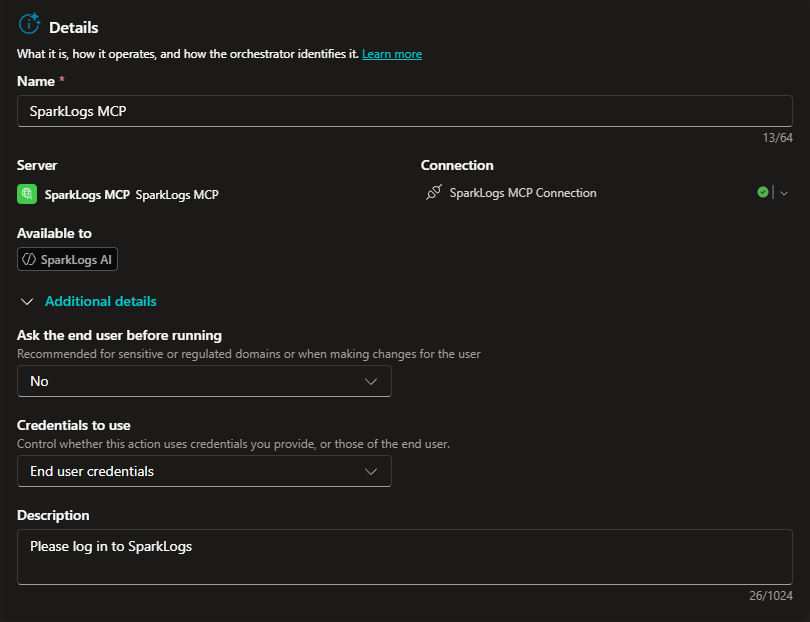
Open the SparkLogs MCP tool details:
- Ask the end user before running: No. Otherwise Studio prompts on every SparkLogs call.
- Credentials to use: End user credentials.
Each tech signs into SparkLogs as themselves, with their own org scope.
Use
Maker credentialsonly when you want anyone chatting with the agent to query without their own authentication (you should tightly secure access and limit scope).
Studio still treats some MCP inputs as required (start, end, external_investigation_id) and will quiz the user for them, including RFC3339.
After the tools appear, open Inputs on each SparkLogs tool and set those fields to Don't prompt.
The instruction template already says never ask for RFC3339; this Studio setting is what actually stops the interrogation.
Test, then publish
Confirm the Environment picker still shows your dedicated environment.

Open Test. Try a fleet question such as: "What data is available? Any problems in my fleet over last week?"
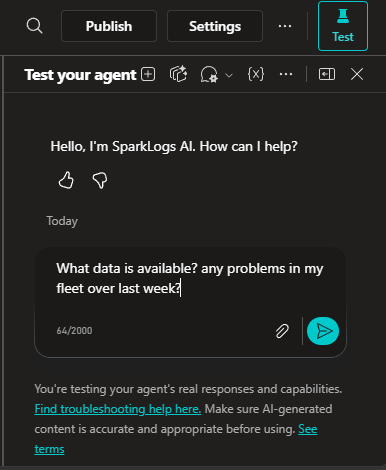
A good answer cites coverage and health, names what is in scope, and offers a follow-up. Example:
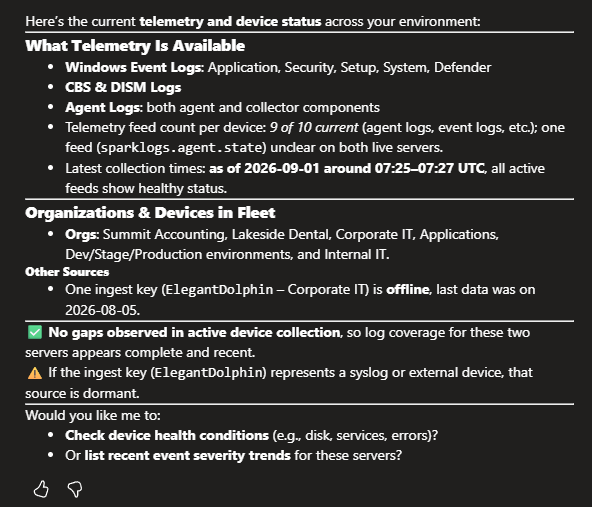
The first Test after you click Retry often hangs.
The first message in a brand-new session may only initialize.
Start a new conversation and send the question again.
That is a Studio quirk, not a SparkLogs outage.
When Test looks right, Publish. Publishing does not put the agent in front of techs by itself. You still connect a channel, share it, and tell them how to open it.
Microsoft's channel and install steps: Connect an agent for Teams and Microsoft 365 Copilot. Sharing: Share agents with other users.
Channels
- Open Channels and select the Teams and Microsoft 365 Copilot tile.
- Under Turn on Microsoft 365, leave Make agent available in Microsoft 365 Copilot selected so techs can use it in both Teams and Microsoft 365 Copilot. If you clear that, it is Teams only.
- Select Add channel.
Install it for yourself first: See agent in Teams → Add. The agent should appear in your Teams agent list (left rail), like a 1:1 chat.
If Add is blocked, your Teams admin must allow Power Platform apps in the Teams admin center.
Share with engineers
Share so other engineers can use the agent (not edit it in Copilot Studio).
- Share (overflow menu next to Publish).
- Add the security group for your service desk (or named engineers).
- Permission: User - can use the agent. Do not grant authoring unless someone else should change the agent.
- Copy link from Availability options on the Teams channel panel, and send that link to the group.
On that same Availability panel, Show to my teammates and shared users (and Show in Built By Your Colleagues) puts the agent in the Teams app store under Built with Power Platform, visible only to people you shared with.
Leave Allow your users to add this agent to a team off unless you explicitly want @ in channels.
Channel replies are visible to everyone in that channel, including clients if that is a client Teams.
Org-wide catalog (Built for your org / Microsoft 365 Agent Store) needs a Teams admin approval. Skip that until the 1:1 path works for the desk.
Republish after you change instructions or tools.
In an already-open Teams chat, the engineer may need to type Start over before they see the new version.
How engineers chat with the agent
Engineers will usually want to use a 1:1 chat with SparkLogs AI.
You could also have a group channel with the agent present, where all can interact with it and see results.
In this case, you tag the agent with @ to interact with it.
Teams (usual path)
- Open the install link you sent, or go to Apps, search SparkLogs AI under Built with Power Platform, and Add. Install it as a personal app or as a tab on a team as appropriate.
- Open a chat with SparkLogs AI from the left rail (same as starting a chat with a person).
- On first use, complete SparkLogs OAuth (end-user credentials): pick the workspace and org scope as appropriate.
- Ask in plain language: a client, a device, a time window, or a whole fleet-wide analysis.
Microsoft 365 Copilot
Open Copilot, pick SparkLogs AI from the agent list (or type @ and select it), then ask.
Until they leave that conversation, Copilot is talking to this agent only.
If an engineer cannot find the agent: they need a Microsoft 365 Copilot license, they must be in the security group you shared, and Teams may take a while to refresh (sign out and back in, or wait).
If something fails
- Wrong environment: Overview errors or missing Copilot Studio features usually mean you are still in Default. Switch the Environment picker, or create a new environment in a Copilot Studio-supported region.
- Wrong harness: you cannot convert a GitHub Copilot-harness agent to standard. Create a new agent with New experience off.
- Techs cannot Add the agent in Teams: the tenant may block Power Platform apps. That is a Teams admin setting, not SparkLogs.
- Techs cannot find SparkLogs AI: they need a Microsoft 365 Copilot license and membership in the group you shared. Sign out of Teams and back in, or wait; the store caches.
- OAuth for the wrong workspace: disconnect in SparkLogs Workspace Access and approve again.
- Studio asks for RFC3339: set SparkLogs tool inputs to Don't prompt, and keep the instruction template's time-window rules.
- Do not put an API key / bearer header on this connector unless you intend to skip OAuth. API tokens: Workspace Access.