Audit Logs
SparkLogs keeps an audit log of changes to access and configuration, reads of sensitive data, AI app activity and refused attempts. Entries are kept for 37 months. Use it to show a client or an auditor who could reach their data and what was done with it.
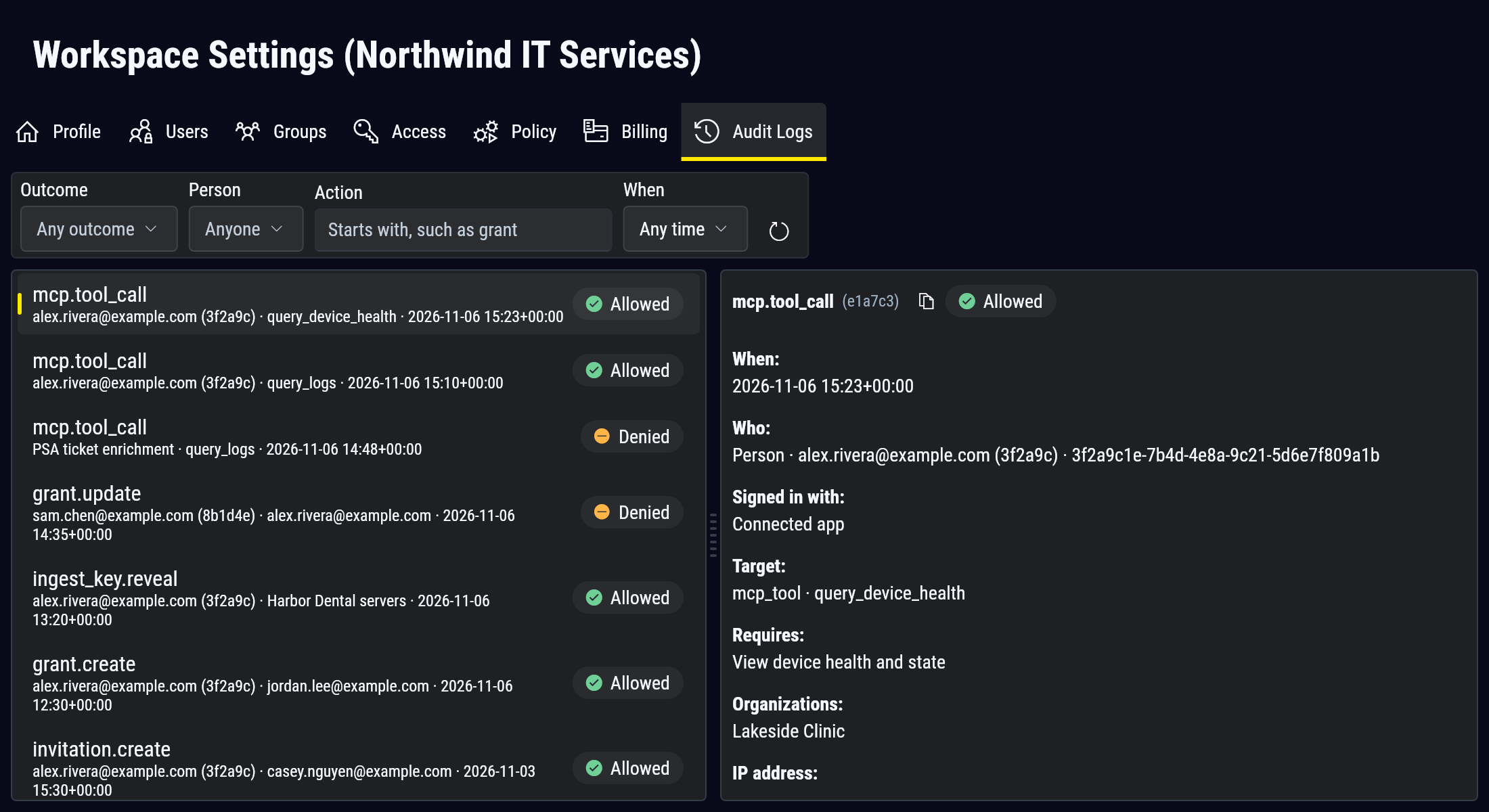
Open Workspace Settings, then Audit Logs.
What is recorded
| Kind | Examples |
|---|---|
| Access changes | Invitations, access grants, group membership, API tokens, connected apps. |
| Configuration changes | Organizations, registration tokens, ingest keys, replication targets, workspace settings. |
| Reads of sensitive data | Revealing a key or token, raw log queries, exports. An export is authorized through an emailed link, and the entry shows that. |
| AI app activity | Each tool call a connected AI app or an API token makes. |
| Refused attempts | Any of the above that was denied, with the access it would have needed. |
Each entry shows when it happened, who acted, how they were signed in, what the action targeted, the organizations involved, the IP address, and the outcome: Allowed, Denied or Failed. The actor can be a person, a workspace API token (shown as Workspace key), or SparkLogs staff.
Find an action
Filter by Outcome, Person, Action and When.
Action matches the start of an action's name, so grant finds every access grant change and mcp finds every AI tool call.
To see what a connected AI app read, filter Action to mcp and select a call.
The entry names the person who approved the app, the tool it called, and the organizations it read.
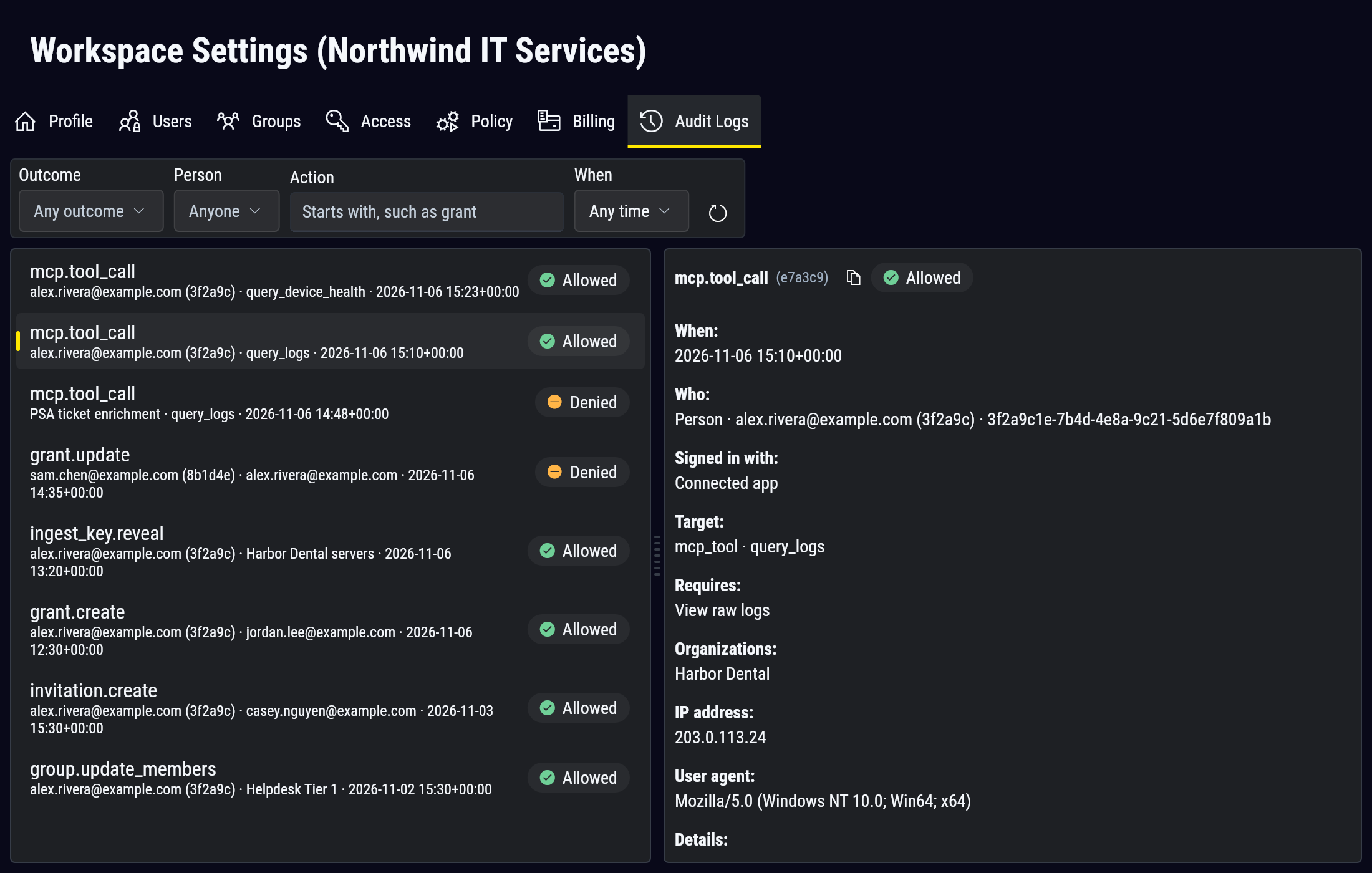
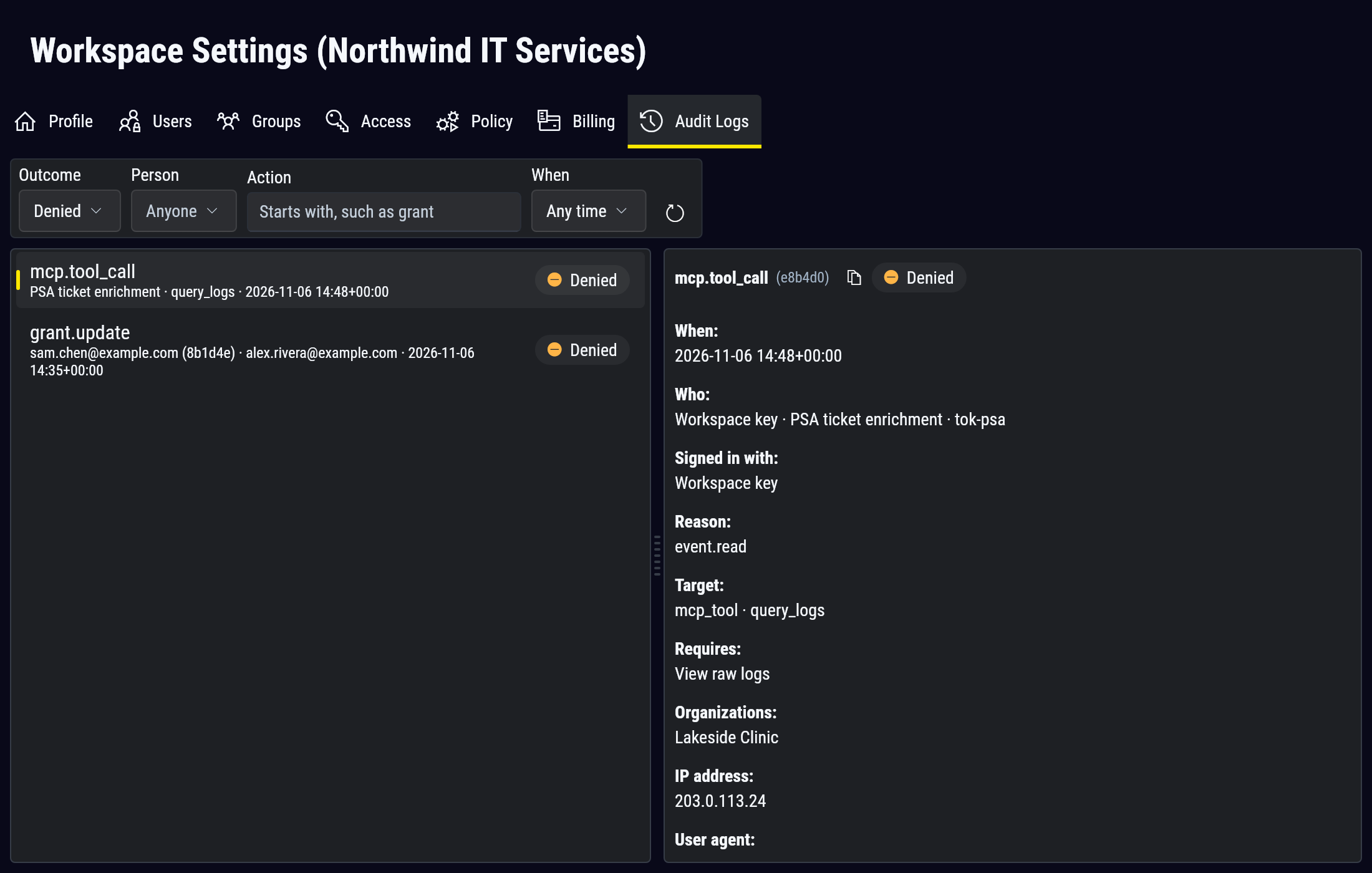
To see what was refused, set Outcome to Denied. Requires shows the access the action needed. Here a workspace API token whose role has no raw log access tried to query raw logs at one client.
Who can review it
Administrators, Organization Administrators and Auditors can open the tab. The Auditor role can review access, configuration and the audit logs, and has no access to collected data. See Roles.
What you see depends on where your role applies:
- With a role on All organizations, you see every entry, including activity on the workspace itself, such as settings changes.
- With a role on selected organizations, you see changes made within those organizations, and every query or export that read their data, including ones run over a parent organization or all organizations. Changes made above your organizations, such as edits to a parent organization, are not shown.
- Where an entry also names organizations outside yours, they show as other organizations. You see the rest of the entry, without their names, their count, or the names of keys and tokens that belong to them.
Organization names show as they were when the action happened.
Archive job logs are separate
The audit_logs/ folder in your archive holds the logs of daily archival and replication jobs.
See Archive data format.