Users, Roles and Groups
Access to a workspace is given as access grants: a role, and the organizations where it applies. Give them to a person directly, or to a group the person belongs to.
Open Workspace Settings, then Users for people and invitations, or Groups.
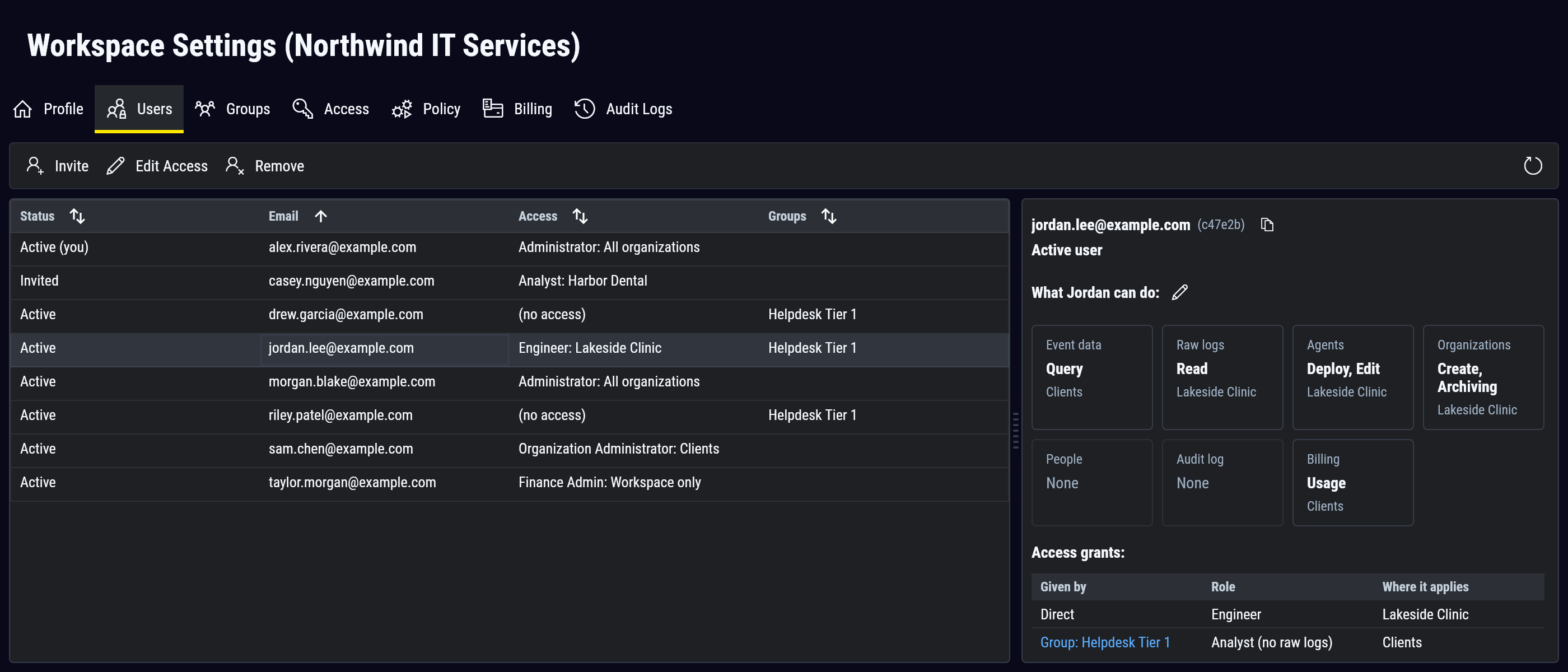
Access grants
An access grant is a role plus where it applies:
- All organizations: every organization (for most MSPs, a client) in the workspace, including ones added later.
- Selected organizations (and all of their children): the organizations you pick and everything under them.
- Workspace only: no organizations. The role keeps only its workspace permissions. A Finance Admin on Workspace only, for example, can manage billing but cannot see ingestion volume by organization.
A person can hold several access grants, given directly or through groups. SparkLogs checks each permission separately at each organization. A person who is an Engineer at one client and an Analyst at another has Engineer rights only at the first.
Workspace permissions (workspace settings, billing, app registrations) take effect only with All organizations or Workspace only.
Roles
A role's permissions apply at the organizations its access grant covers.
| Role | What it can do |
|---|---|
| Administrator | Everything, including workspace settings, billing, app registrations and audit logs. |
| Organization Administrator | Invite people and manage their access and groups. Create, edit, move and delete organizations. Manage agents, agent policy, ingest keys and registration tokens. Configure archiving and replication. Query all data, including raw logs and App Analytics. Create workspace API tokens and manage other people's tokens. Review audit logs. No workspace settings or billing. |
| Engineer | Create, edit and delete organizations (not move them). Manage agents, ingest keys and registration tokens. Configure archiving and replication. Query all data, including raw logs and App Analytics. |
| Analyst | Query all data, including raw logs and App Analytics. View agents and archive settings. Cannot change settings. |
| Analyst (no raw logs) | Analyst, without raw log access or App Analytics. |
| Deployment Manager | Create, edit and delete organizations (not move them). Manage agents, agent policy, ingest keys and registration tokens. No access to collected data. |
| Auditor | View members, groups, audit logs, agents, API tokens, registration tokens, archive settings, app registrations and ingestion volume. No access to collected data. |
| Finance Admin | Billing and plan changes, ingestion volume by organization, and the organization tree. No access to collected data. |
Every role can view the organization tree where it applies and create API tokens for its own use.
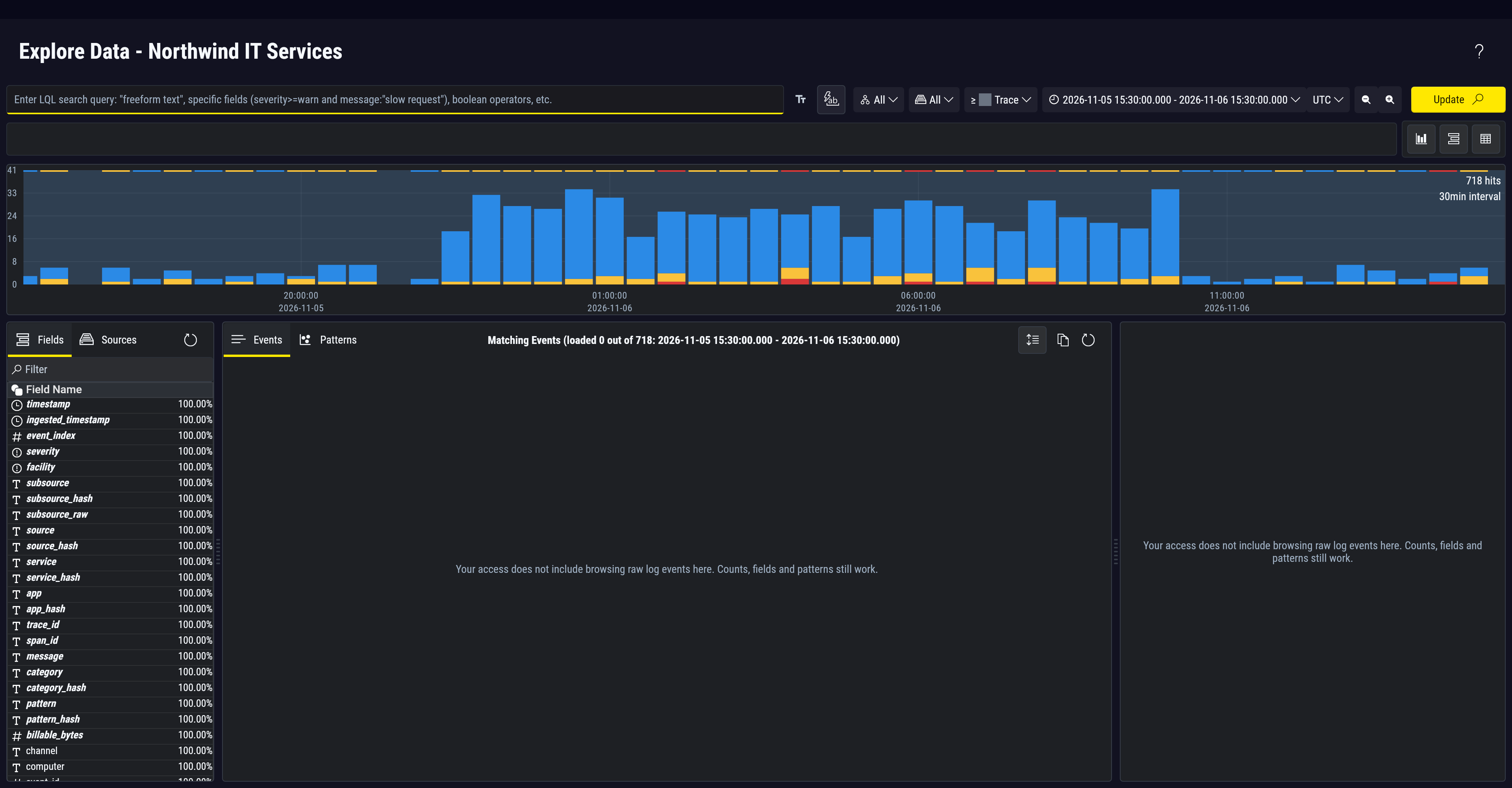
Raw log access
Without raw log access (the Analyst (no raw logs) role, for example), a person cannot open log rows, sample messages or exports. They can still see counts, trends, patterns and the device health the SparkLogs Agent reports. Those views can include names, paths and other values from the device, and a search filter can show whether a value appears.
Give or change access
On Users, invite a user, or select one and choose Edit Access (or the pencil beside what they can do). The access grants page lists each grant on the left. Add Access adds one: choose a role and where it applies. Nothing is saved until Save Changes, which applies every change at once, and the change takes effect right away. On Groups, New Group walks through a name, its access grants and, optionally, its members. Rename, Edit Access and Edit Members change an existing group, from the command bar or the pencils on the group's details.
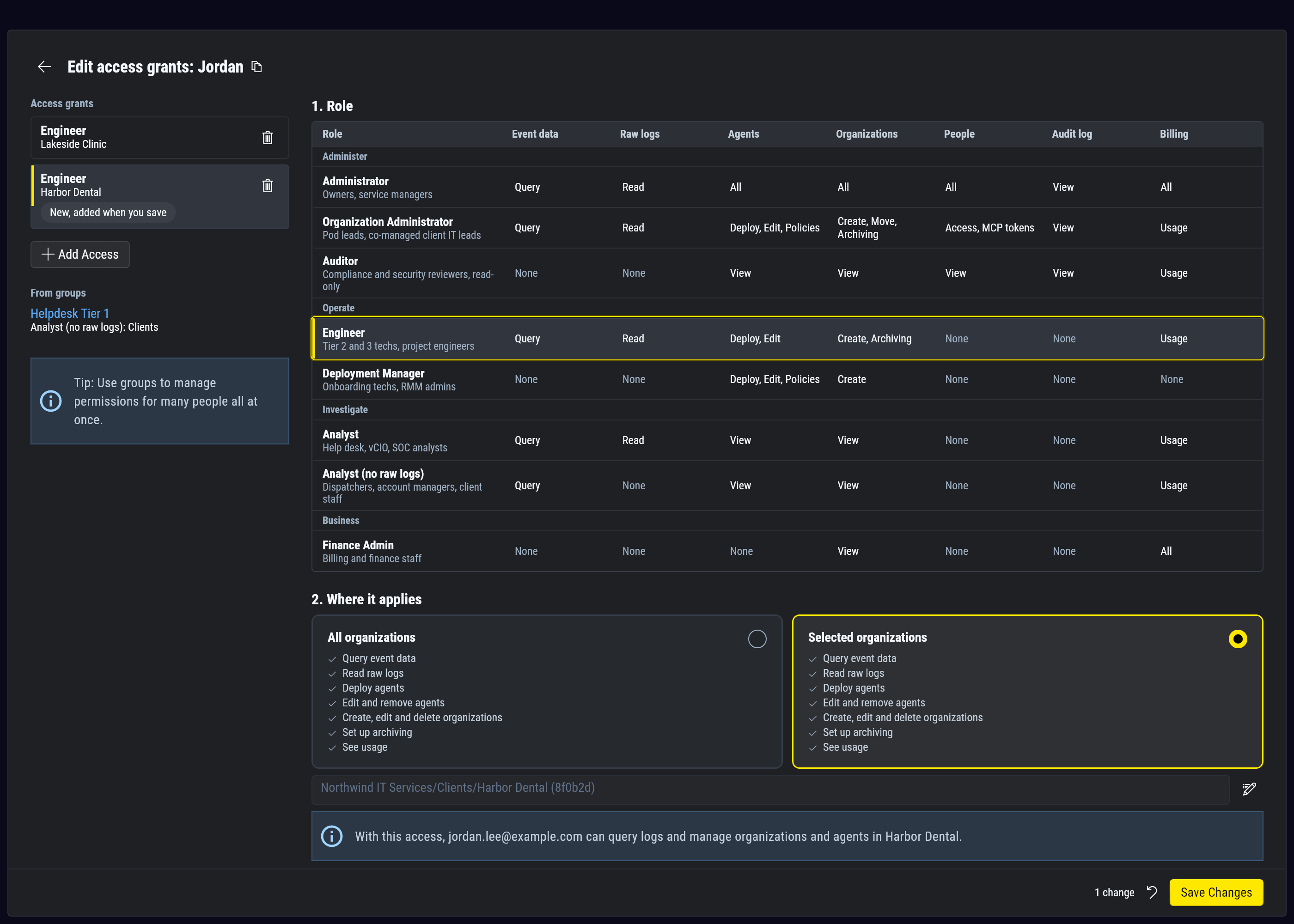
- You can only give access you hold yourself, in the places you choose.
- You can change your own access and your own group memberships under the same rules.
- The workspace must keep at least one person with the Administrator role on All organizations, given directly (not only through a group). A change, removal or departure that would leave none is refused: give another member that access first.
- Access that also covers organizations you can't see is read-only for you and shows Covers organizations you can't see. Ask someone whose access covers those organizations to change it.
- Only Administrators and Organization Administrators can move an organization, and moving changes who can see it. See Moving devices and organizations.
Who you can see
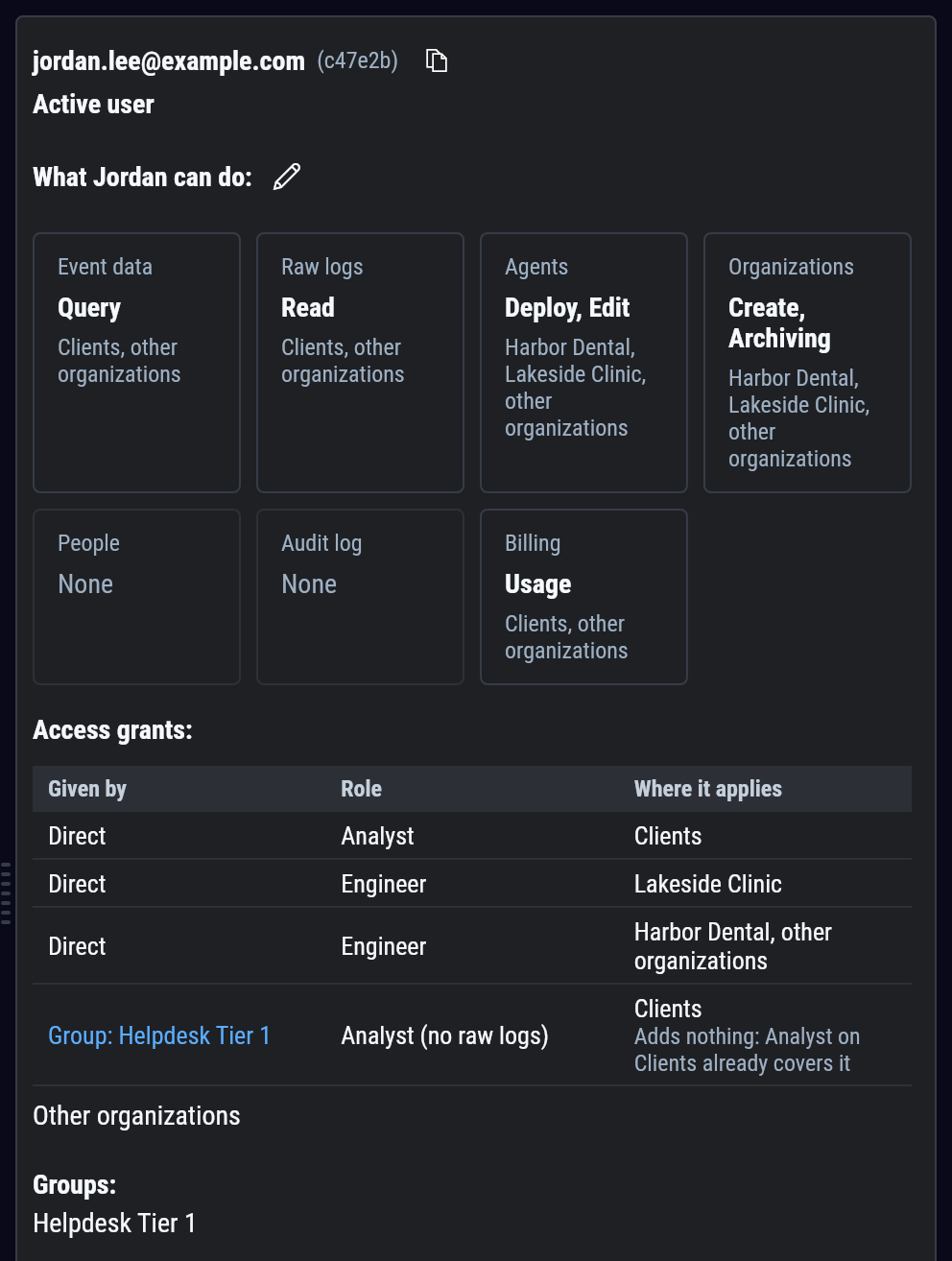
Users, Groups and the API token lists show the people, groups and tokens whose access is given on your organizations or on organizations below them. Replication rules work the same way: you see the ones set up on your organizations. Access given on a parent organization or on All organizations also reaches your organizations, but those people, groups, tokens and rules do not appear on your lists. Audit Logs shows more: queries and exports of your organizations' data, wherever they came from. You always see your own access in full.
- A group whose access is all given from above is not listed, and neither are its members unless their own access lists them.
- On a person, group or token you see, only the access given on your organizations is shown. The rest shows as one line, with no names or count.
- Where access you can see also names organizations outside yours, they show as other organizations, without names. Someone else's access that is given outside your organizations shows as Some of their access is not shown to you.
- People, invitations and groups with no access, or with Workspace only access, appear only to people with a role on All organizations. Those people see everyone and all of their access. You see the invitations you sent.
- When a client's IT staff have access to their own organizations, they see the people, groups and tokens given access on those organizations, including your staff given access there. Your staff whose access is on All organizations or on a parent organization do not appear to them. Groups and workspace API tokens given access on several clients are visible, with their names, to people at each of those clients.
How an Organization Administrator on Clients sees a member's access:
Invitations
An invitation carries the access the person gets when they accept, or no access. It expires 90 days after it was last sent. Send Reminder sends it again and restarts the 90 days. Inviting someone with no access, or withdrawing such an invitation, needs your role on All organizations.
Leave a workspace
Open Workspace Settings, then Profile, and select Leave Workspace.

You will lose all access to the workspace, and your API tokens and connected apps are revoked. You can regain access only through a new invitation. The last member with the Administrator role given directly on All organizations can't leave until another member has that access.
Groups
A group gives one or more access grants to every member of the group.
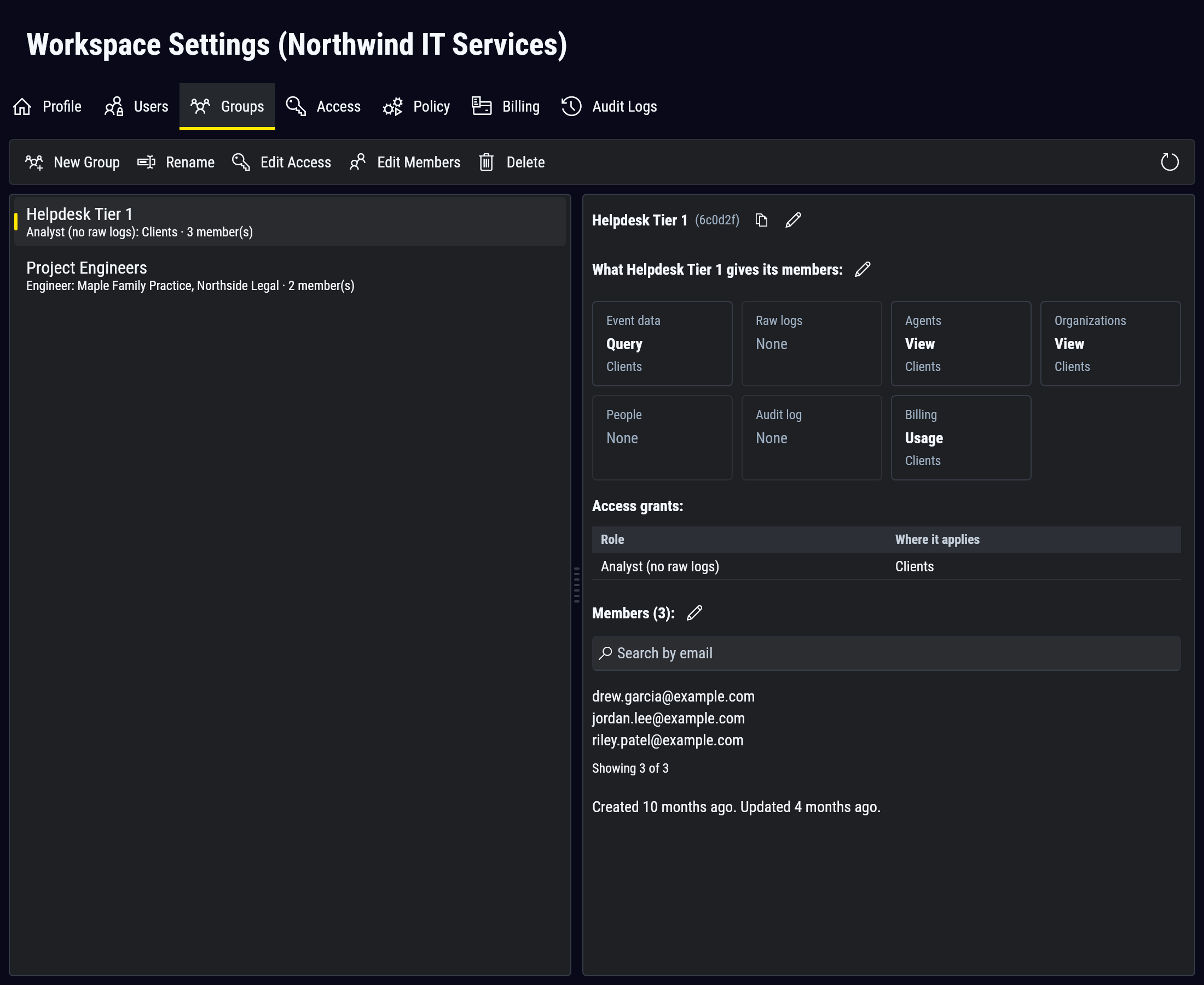
Select a group to see its access grants and its members. Removing a member, or deleting the group, removes the access it gave. Anyone who can see a group sees all of its members, by name and email.
Audit Logs
Every change described on this page is recorded, along with queries, exports and refused attempts. Administrators, Organization Administrators and Auditors can review them. See Audit Logs.
Connected apps and API tokens
An AI app or API token acts with at most its owner's access, narrowed by its scopes. A workspace API token holds access grants of its own. See Access.