Network
The SparkLogs Agent checks whether the device can reach its gateway, the internet and DNS. It also records adapter, Wi-Fi and TCP readings, and traffic by process. The Network tab of the device timeline shows these readings at T, the moment you are inspecting.
The path at T
Network path at T reads left to right: device, adapter, gateway, internet, DNS, proxy. Each step shows its reading at T, how long it has been in that state, and a link to the chart behind it.
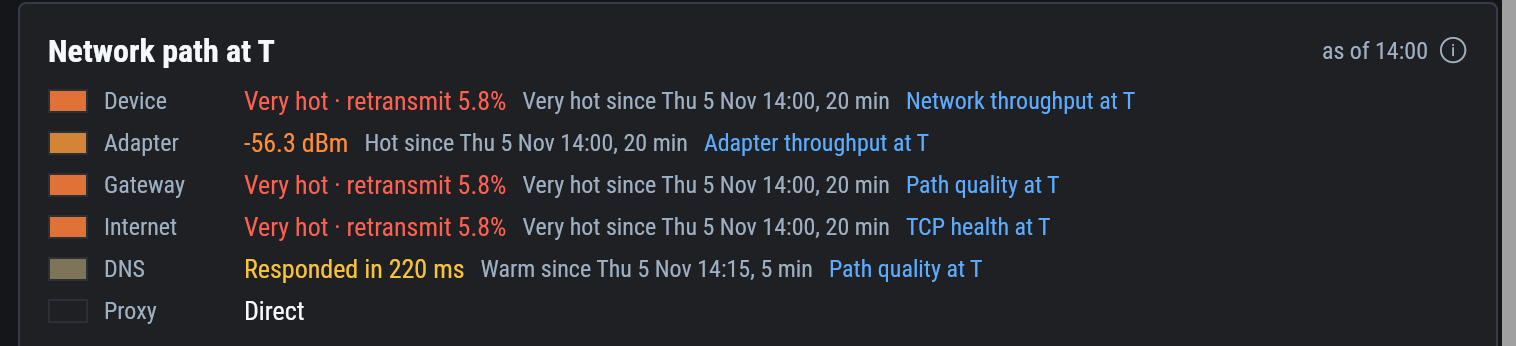
Down, disconnected, or slow
The timeline's network lane marks three states:
- A confirmed outage: the checks could not reach a step.
- No network link: no adapter was connected, such as a laptop with Wi-Fi off.
- Network trouble: the link was up, and the device's own network readings show it performing poorly.
The DNS step can show Blocked by a DNS filter.
A DNS filter in front of the device is blocking the name the check looks up, so the agent cannot measure DNS latency.
DNS itself may be working.
To measure it, allow conncheck.itlightning.app and its subdomains.
See Agent network requirements.
Traffic by process
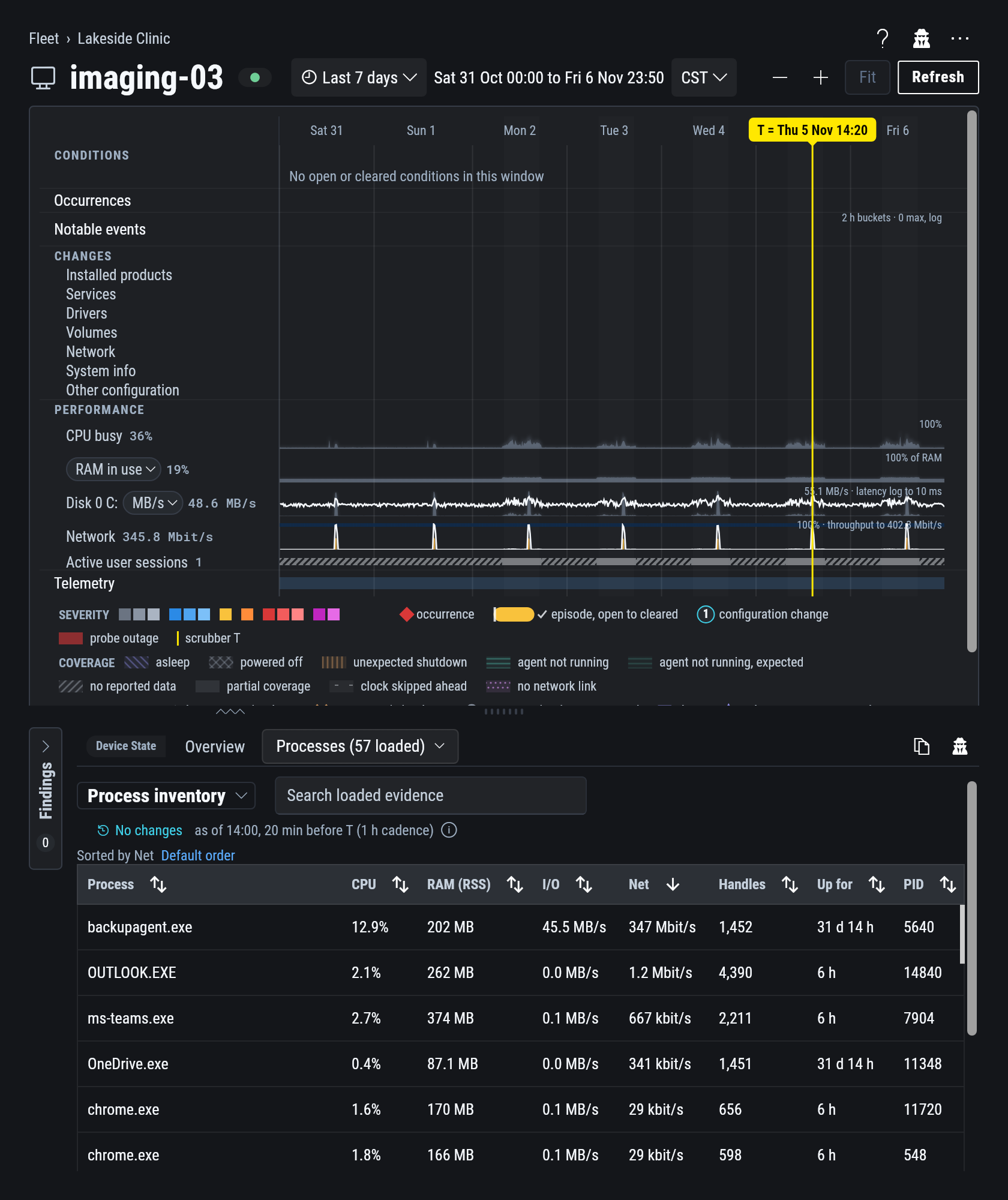
On the Processes tab, sort by the Net column to rank processes by TCP traffic. The timeline's network card lists the top processes at T.
Network monitoring settings
Workspace Settings > Policy > Network monitoring applies to every agent in the workspace at its next check-in.
The gateway, internet and DNS checks are on by default, and each can be turned off.
Connection destinations sets what the agent records about the remote end of each connection:
| Setting | Recorded |
|---|---|
| Full | The exact address. |
| Prefix (default) | The network only: /24 for IPv4 and /48 for IPv6. |
| Opaque | An ID in place of the address. |
| Aggregate | One row per process, direction and port. |
Addresses on the local network stay exact.
Network questions across a client
The Network tab covers one device. To compare many, ask your AI which devices at a client have the worst Wi-Fi retries, internet latency or failed checks. See Fleet-wide questions.
At Lakeside Clinic:
You:  Lakeside Clinic's front desk Wi-Fi crawls every afternoon, though the signal is good.
      Rank their Wi-Fi devices by retries this week.
AI:   frontdesk-07 is worst, every afternoon from about 14:00 to 14:40.
      In the same window imaging-03 sends heavy traffic over the same access point.
      [frontdesk-07 at 14:20]  [imaging-03 at 14:20]
Open imaging-03 at 14:20: on the Processes tab, its backup agent sends the traffic.
On the Changes tab, the backup agent's driver went from 6.2.1 to 6.3.0 the day the slowdowns began.
Copy the investigation prompt from that change and ask the AI what else the update changed.