IronRunbook
IronRunbook is a portable AI agent for MSP technicians, built by MVP Network Consulting, a top managed service provider. A technician drops it on the machine that needs work and runs it, and it brings a senior engineer's runbooks to the ticket in front of them.
SparkLogs is built in. There is no plugin to install and nothing to configure: ask IronRunbook to sign in to SparkLogs.
IronRunbook overview
- One portable Windows executable. No installer, no service and no admin requirement. By default it removes itself when the session ends.
- Vendor runbooks for the systems MSPs support. Microsoft 365, Active Directory and Windows Server, Veeam and Datto, VMware and Proxmox, UniFi, SonicWall, Fortinet and more. It loads the matching runbook before it proposes a change.
- Evidence first, changes second. It observes and preserves evidence on the machine, and it explains and confirms disruptive work before a command can affect the system.
The technician stays in control: IronRunbook does not turn a troubleshooting request into unrestricted automation.
Better together
Fixing a machine takes two things: knowing what went wrong, and acting on it safely.
 Ask in IronRunbookon the machine that needs workIronRunbookfixes it, with vendor runbooks, under your control
SparkLogs is the eyes. It keeps a continuous record of every device: event logs, crashes, changes, performance and health over time. The AI reads that record to find the cause in minutes, on one machine or across the whole fleet, and links each claim to its evidence.
IronRunbook is the hands. It works on the machine itself, with the runbook for the system at fault. The technician confirms each disruptive step before it runs.
IronRunbook starts from the evidence on the machine in front of it. SparkLogs adds what that machine cannot show on its own: its history from before the technician arrived, and every other device in the fleet.
Sign in
- Start IronRunbook on the machine.
- Type sign in to SparkLogs.
- Sign in with your own SparkLogs account in the browser and approve the connection.
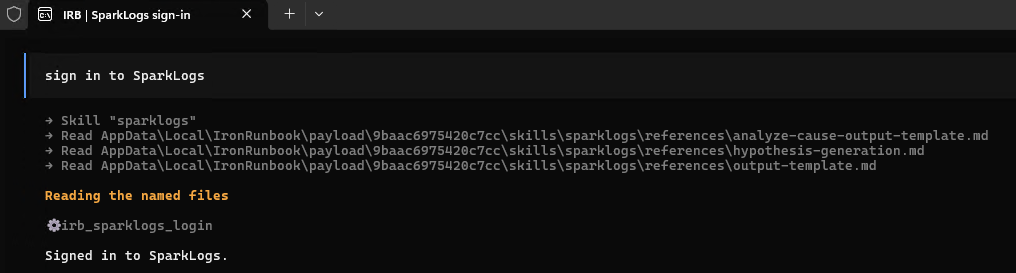
About the sign-in:
- IronRunbook only reads your SparkLogs data.
- You sign in as yourself, so it can reach only the organizations you can.
- When you close IronRunbook the sign-in is removed, so nothing is left behind on a machine that is not yours.
- To run IronRunbook without SparkLogs, start it with
--irb-no-sparklogs.
Ask about a machine or the fleet
Ask in plain language:
- "What failed on SRV-FILE01 last night?"
- "What needs attention across my fleet today?"
- "Why do backups keep failing on SRV-SQL01?"
- "Write me a ticket-ready summary for this PC."
Answers are short and link to the exact evidence in SparkLogs. IronRunbook also says plainly what it could not check.
What you need
- IronRunbook 0.10.26 or later.
- A SparkLogs workspace. A free plan is enough to try it.
- The SparkLogs Agent on the devices you want to ask about. A device has history only once the agent is installed on it.