Get Value from Your Data
With your data now flowing, here is how to put it to work.
Connect your AI
Connect the AI assistant you already use, and ask about your devices in plain language.
- "Why did this file server reboot at 2am?"
- "Backups on this client have failed three nights running. What changed?"
- "What is failing across my fleet today that was not failing last week?"
Each answer cites the records behind it, with a link that opens the device at that moment.
Connect your AI, then see what to ask in IT Fleet Intelligence.
See the health of your fleet
Fleet lists every device with its worst open condition, such as a failing disk, a crash that keeps returning, or backups that stopped. Devices that need attention rank first, so the list is a place to start each day.
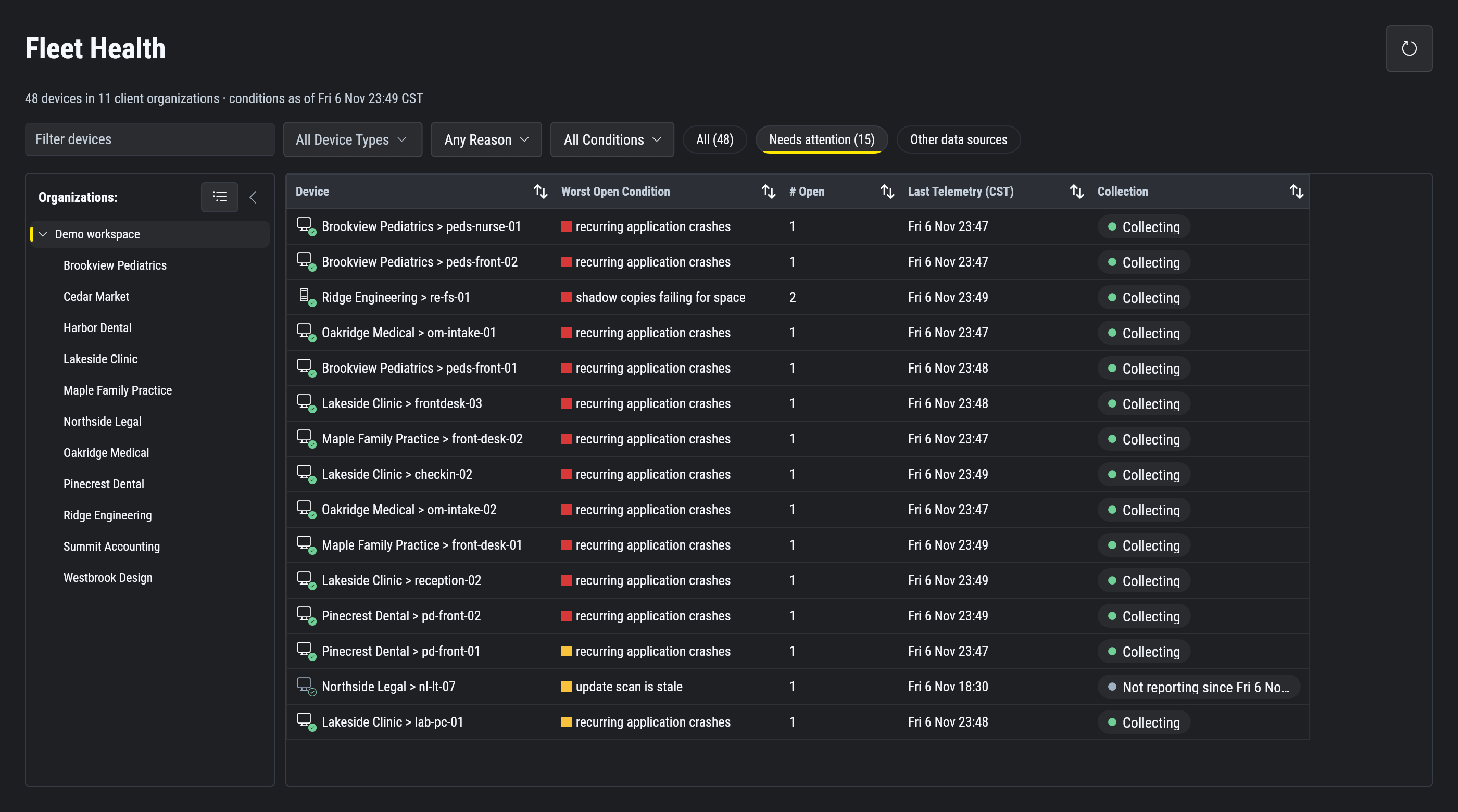
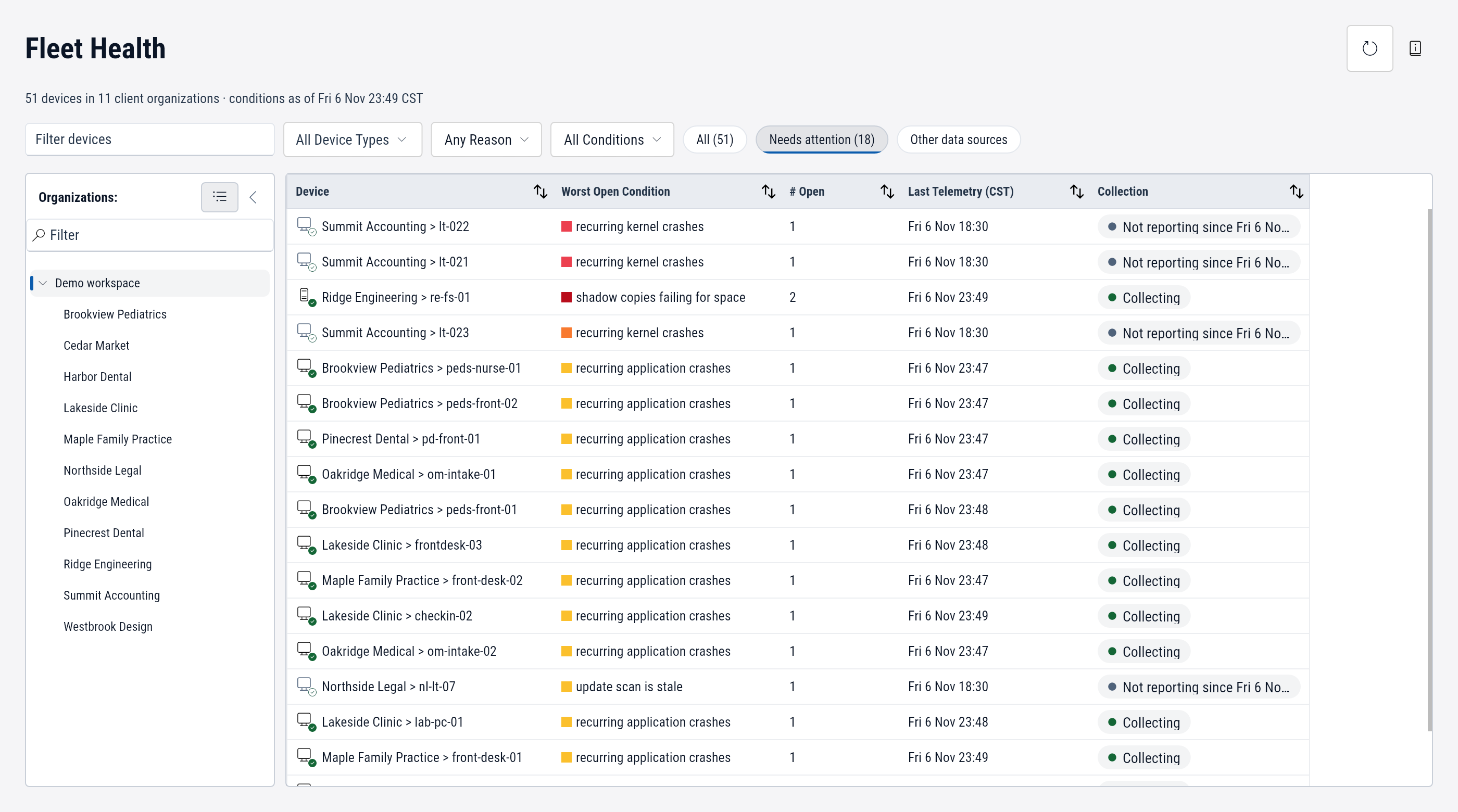
See Fleet Health.
Go back in time on one device
The device timeline is a record of one machine: its conditions, changes, performance, top processes and events. Move to any moment and see the device as it was then, including what changed just before a problem began.
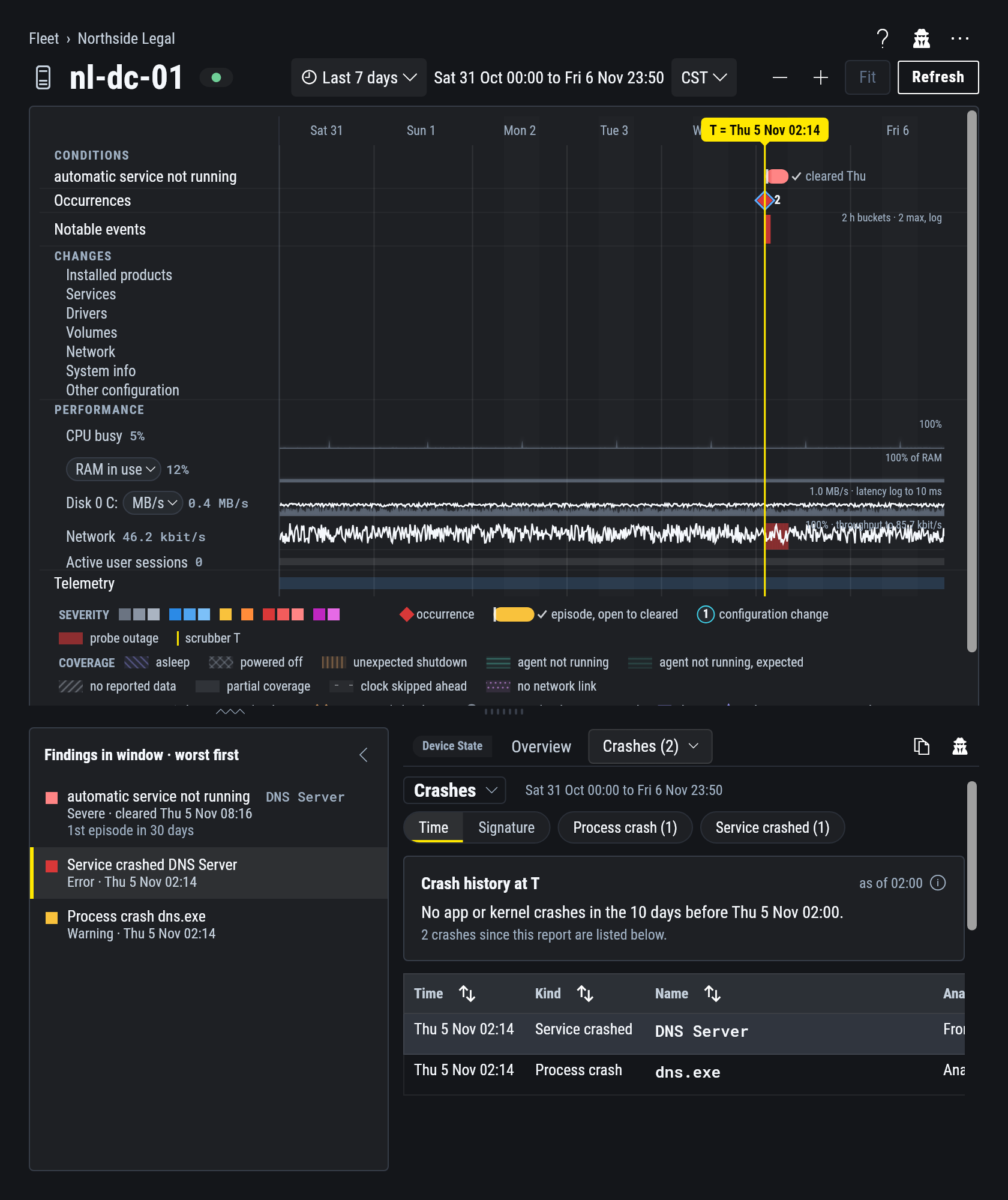
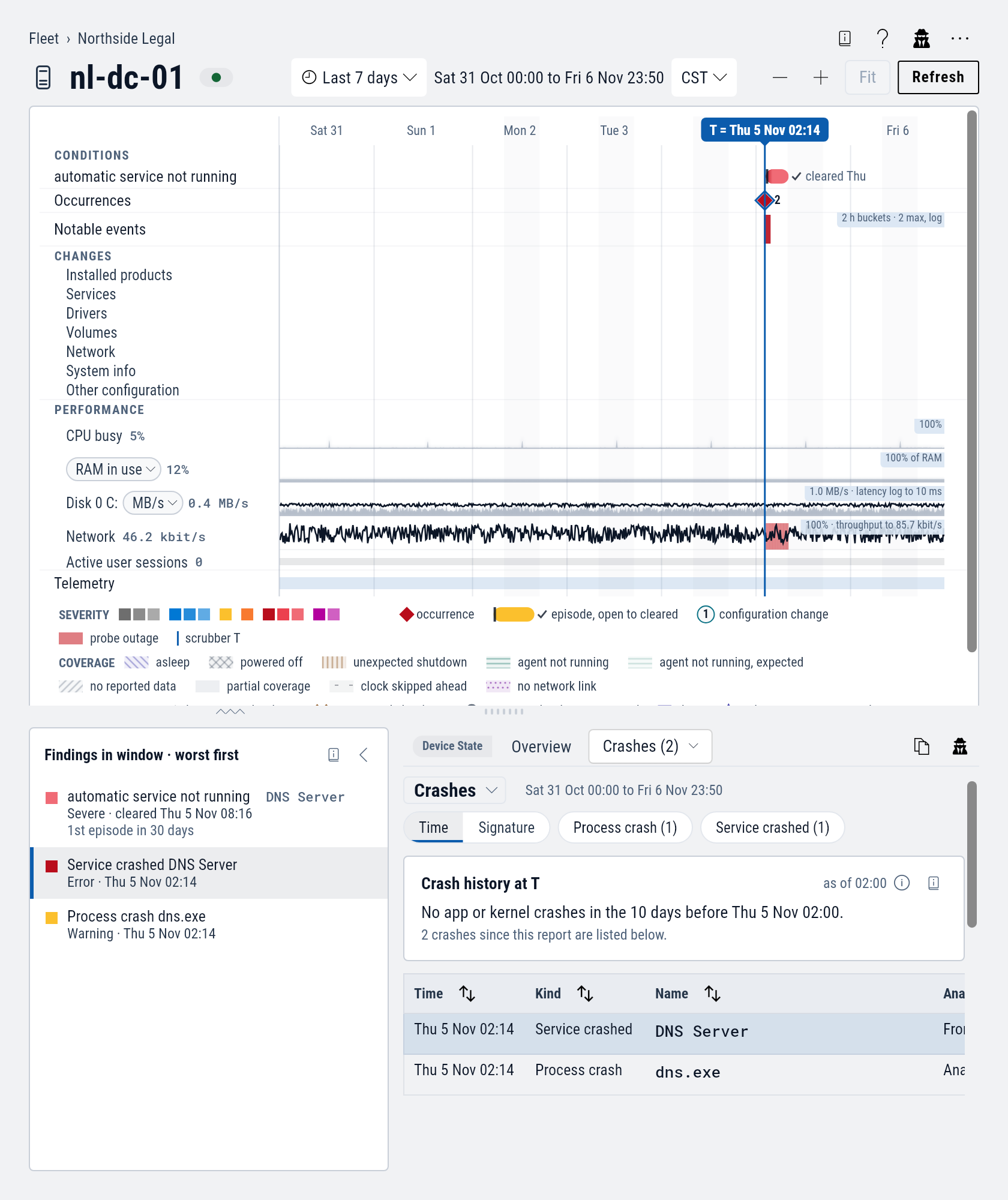
See Device Timeline.
Query everything
For questions the screens above do not answer, Explore Data searches every event you have collected, and the REST API and MCP API open the same data to your own automation.