Storage
The Storage tab of the device timeline maps the device's disks and volumes as reported at T.
The map
Each row is a physical disk, laid out like Windows Disk Management: the disk on the left, its volumes and partitions to the right, sized by capacity.
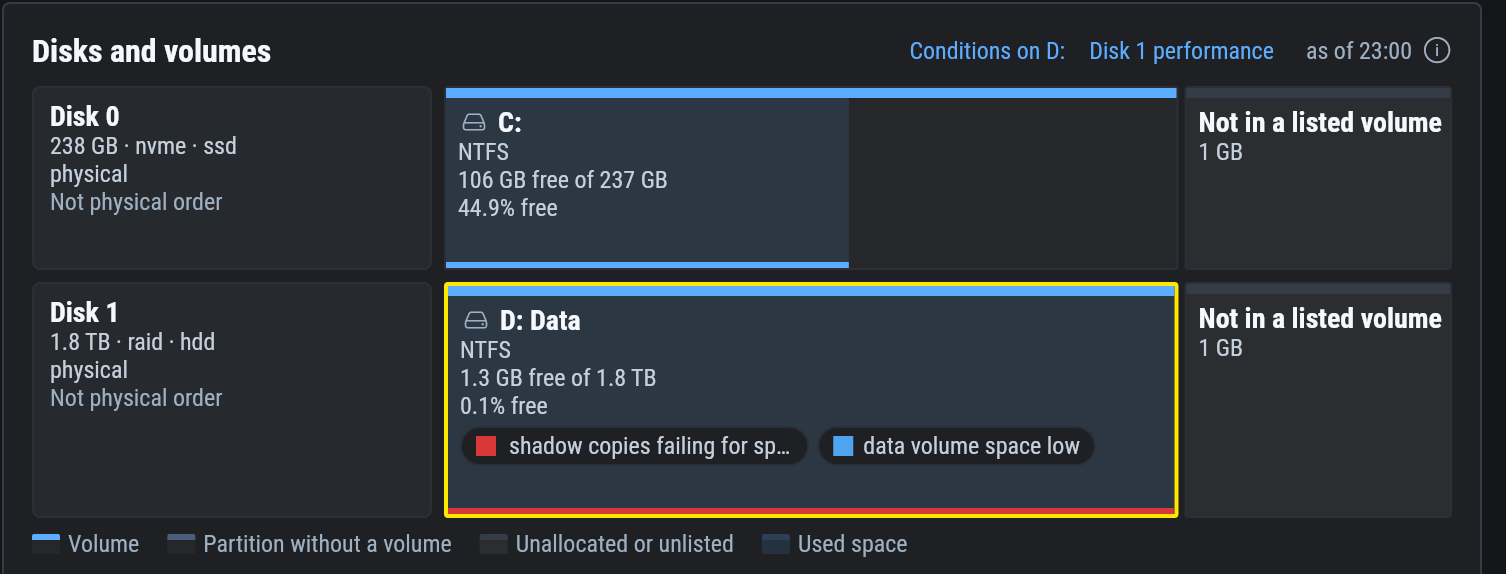
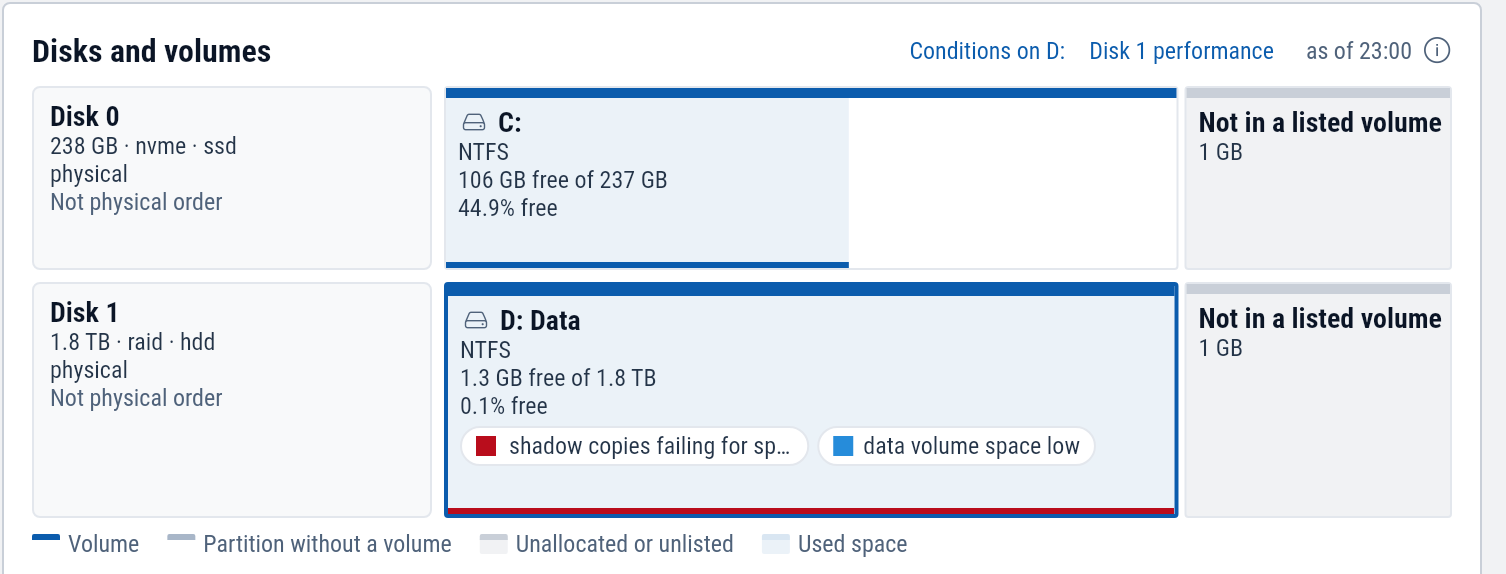
A disk shows its model, size, bus (such as NVMe or RAID) and media, and whether it is a local disk, a SAN LUN or a virtual disk.
A volume shows its drive letter and label, file system, free space, and BitLocker status when it is on. The shaded part of the bar is the used space. The line under it takes the color of the volume's worst open free-space condition, and the conditions open on the volume are listed inside it.
The map also draws partitions that hold no volume (EFI system, recovery) and unallocated space.
A volume
Select a volume for its details: file system, capacity, free space, BitLocker and where it is mounted.
| Section | Shows |
|---|---|
| Volume IO | Latency, read and write rates, and queue, as the latest measurement at T. |
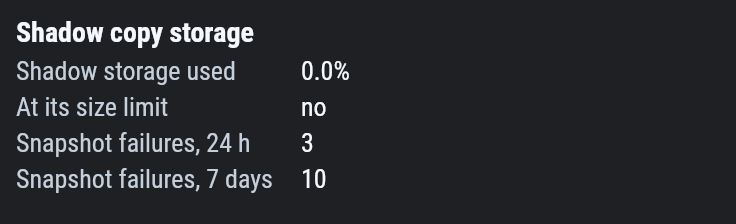
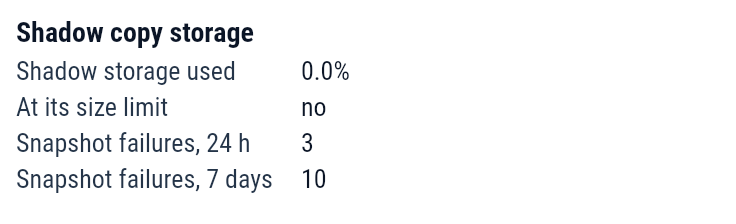
| Shadow copy storage | How full the shadow copy storage is, whether it is at its size limit, and the snapshot failures in the last 24 hours and 7 days. |
| Volume mapping | The disk or disks the volume sits on. |
Conditions on the volume opens its worst open condition on the Conditions tab.
A disk
Select a disk for its model, vendor, size, bus, media, partition table and state, and its partitions. Device IO shows its latency, busy time, read and write rates and queue depth at T.
The Storage tab shows the latest measurement. For a disk's I/O over time, follow the disk's performance link to the Performance tab, where the Disk chart can also split by volume.
Example: why last night's shadow copy is missing
This is the file server from the Conditions example, read from the Storage tab.
Open re-fs-01 and select the Storage tab.
Volume D: Data reads "1.3 GB free of 1.8 TB", 0.1% free, and lists two open conditions: shadow copies failing for space and data volume space low.
Select the volume. Shadow copy storage shows 3 snapshot failures in the last 24 hours and 10 in the last 7 days, with the storage at 0.0% used and not at its size limit. The shadow copy storage is empty, so its size limit is not the cause. The volume itself is 0.1% free.
Once space is freed on D:, the next scheduled snapshot can run.